
Annotated product screenshots: notes that point at the real screen
Build a feature section where notes sit around one product screen and pointing at a note draws a leader line to the exact part it describes, which lifts, in React.
6 min read
Feature grids list what a product does. An annotated screen shows where it lives. Point at a note and a thin line draws from it to the part of the screen it describes, and that part lifts.
The screen marks its own parts
The example screen is drawn in code, and the parts a note can point at carry a data-note attribute. Replace it with your own product's screen and keep the attributes.
Measuring the line
When the active note changes, a small hook measures the note's anchor dot and the near edge of the target part in the frame's own coordinates and returns an SVG path. It also marks the part as active so it can lift. Because it measures on change, the frame can scale freely.
src/registry/features/annotated-screen/use-leader-line.ts
"use client";

import { useLayoutEffect, useState, type RefObject } from "react";

export interface LeaderLine {
  path: string;
  // Where the line ends, for the small dot on the screen.
  end: { x: number; y: number };
}

// The path from the pointed-at note's anchor to the near edge of the screen part it describes, in the frame's own
// coordinates. It also marks that part with data-active, so the screen can lift it; the mark is removed when the
// note is let go. Measured when the note changes, so the frame may scale freely.
export function useLeaderLine(frameRef: RefObject<HTMLElement | null>, activeId: string | null): LeaderLine | null {
  const [line, setLine] = useState<LeaderLine | null>(null);

  useLayoutEffect(() => {
    const frame = frameRef.current;
    if (!frame || !activeId) return setLine(null);
    const anchor = frame.querySelector<HTMLElement>(`[data-anchor="${activeId}"]`);
    const target = frame.querySelector<HTMLElement>(`[data-note="${activeId}"]`);
    if (!anchor || !target) return setLine(null);
    target.setAttribute("data-active", "");
    const box = frame.getBoundingClientRect();
    const from = anchor.getBoundingClientRect();
    const to = target.getBoundingClientRect();
    const start = { x: from.left + from.width / 2 - box.left, y: from.top + from.height / 2 - box.top };
    const isLeft = start.x < to.left - box.left;
    const end = { x: (isLeft ? to.left : to.right) - box.left, y: to.top + to.height / 2 - box.top };
    const bend = (end.x - start.x) / 2;
    setLine({
      path: `M ${start.x} ${start.y} C ${start.x + bend} ${start.y}, ${end.x - bend} ${end.y}, ${end.x} ${end.y}`,
      end,
    });
    return () => target.removeAttribute("data-active");
  }, [frameRef, activeId]);

  return line;
}
src/registry/features/annotated-screen/features-annotated-screen.tsx
"use client";

import { useRef, useState, type ReactNode } from "react";
import { AnimatePresence, MotionConfig, motion } from "motion/react";
import { ScaleToFit } from "@/components/ui/scale-to-fit";
import { EASE_OUT } from "@/lib/motion";
import { SectionHeading } from "@/components/ui/section-heading";
import { SectionColumn } from "@/components/ui/section-column";
import { NoteButton } from "./note-button";
import type { ScreenNote } from "./types";
import { useLeaderLine } from "./use-leader-line";

export interface FeaturesAnnotatedScreenProps {
  title: ReactNode;
  subtitle?: ReactNode;
  // Your product's screen. Mark each part a note talks about with data-note="<the note's id>", and give those parts
  // data-active: styles (they get the attribute while their note is pointed at).
  screen: ReactNode;
  // The width the screen is laid out at before it is scaled to fit, in px.
  screenWidth?: number;
  notes: ScreenNote[];
  className?: string;
}

// One real screen in the middle with short notes around it. Pointing at a note draws a thin line from it to the
// part of the screen it describes, and that part lifts, so the visitor sees exactly where each feature lives.
export function FeaturesAnnotatedScreen(props: FeaturesAnnotatedScreenProps) {
  const { title, subtitle, screen, screenWidth = 720, notes, className } = props;
  const [activeId, setActiveId] = useState<string | null>(null);
  const frameRef = useRef<HTMLDivElement>(null);
  const line = useLeaderLine(frameRef, activeId);
  const column = (side: ScreenNote["side"]) =>
    notes
      .filter((note) => note.side === side)
      .map((note) => <NoteButton key={note.id} note={note} isActive={note.id === activeId} onActivate={setActiveId} />);

  return (
    <MotionConfig reducedMotion="user">
      <SectionColumn isWide className={className}>
        <SectionHeading title={title} subtitle={subtitle} align="center" />
        <div
          ref={frameRef}
          onMouseLeave={() => setActiveId(null)}
          className="relative grid gap-6 lg:flex lg:items-center lg:gap-10"
        >
          <div className="order-2 grid gap-2 sm:grid-cols-2 lg:order-1 lg:w-56 lg:shrink-0 lg:grid-cols-1 lg:gap-16">
            {column("left")}
          </div>
          <ScaleToFit width={screenWidth} className="order-1 lg:order-2 lg:min-w-0 lg:flex-1">
            {screen}
          </ScaleToFit>
          <div className="order-3 grid gap-2 sm:grid-cols-2 lg:w-56 lg:shrink-0 lg:grid-cols-1 lg:gap-16">
            {column("right")}
          </div>
          <svg aria-hidden className="pointer-events-none absolute inset-0 hidden size-full overflow-visible lg:block">
            <AnimatePresence>
              {line && (
                <motion.g key={activeId} initial={{ opacity: 1 }} exit={{ opacity: 0, transition: { duration: 0.12 } }}>
                  <motion.path
                    d={line.path}
                    fill="none"
                    className="stroke-sky-600"
                    strokeWidth={1.5}
                    initial={{ pathLength: 0 }}
                    animate={{ pathLength: 1 }}
                    transition={{ duration: 0.45, ease: EASE_OUT }}
                  />
                  <circle cx={line.end.x} cy={line.end.y} r={3.5} className="fill-sky-600" />
                </motion.g>
              )}
            </AnimatePresence>
          </svg>
        </div>
      </SectionColumn>
    </MotionConfig>
  );
}
More articles
7 min read
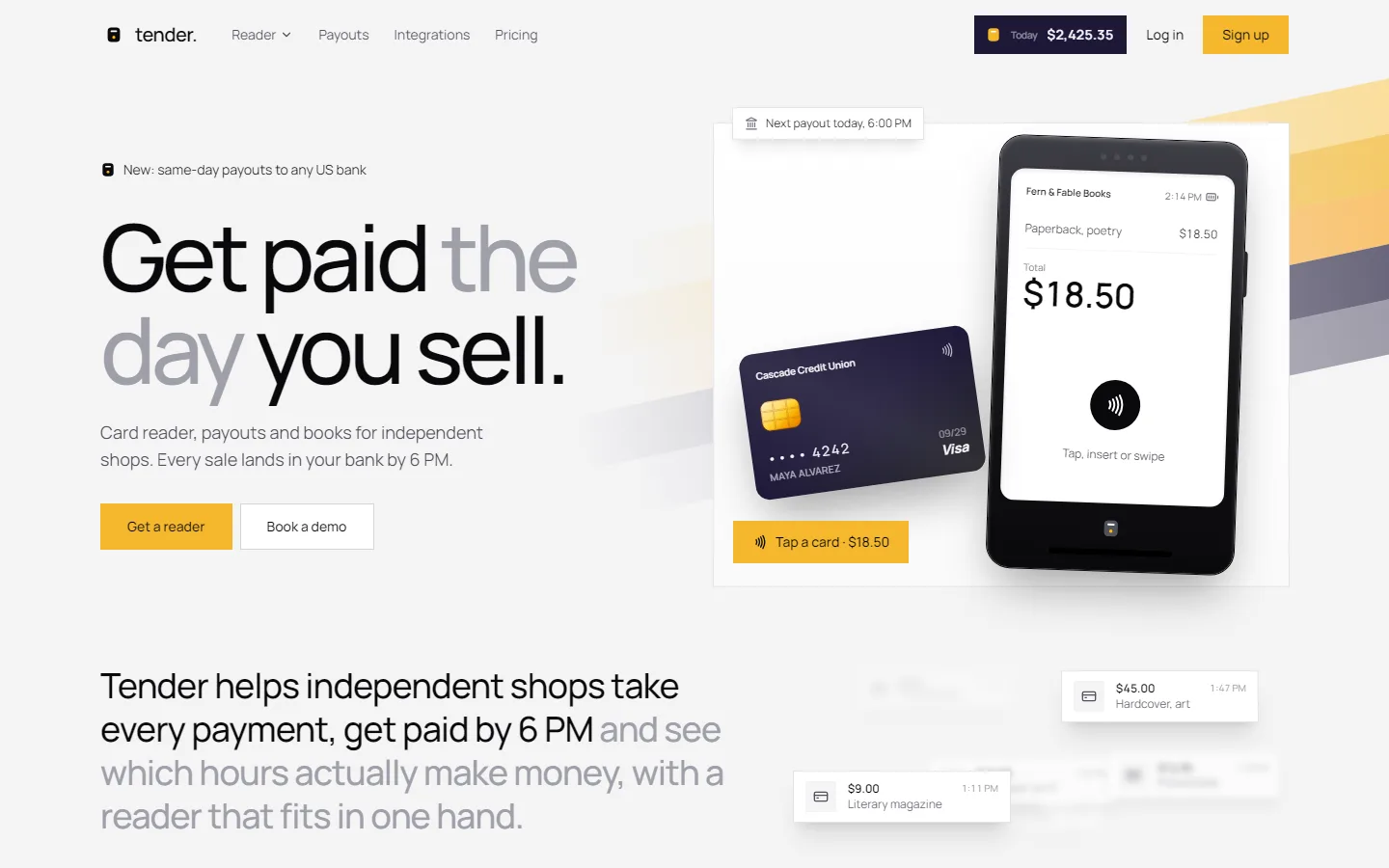
A POS and payments landing page template for 2027: tap a card, watch it ring up
How our payments and point-of-sale landing page template works: a card terminal drawn in code you tap a card on, a live payments dashboard, a best-hour heat grid and a fee calculator written out as a check.
7 min read
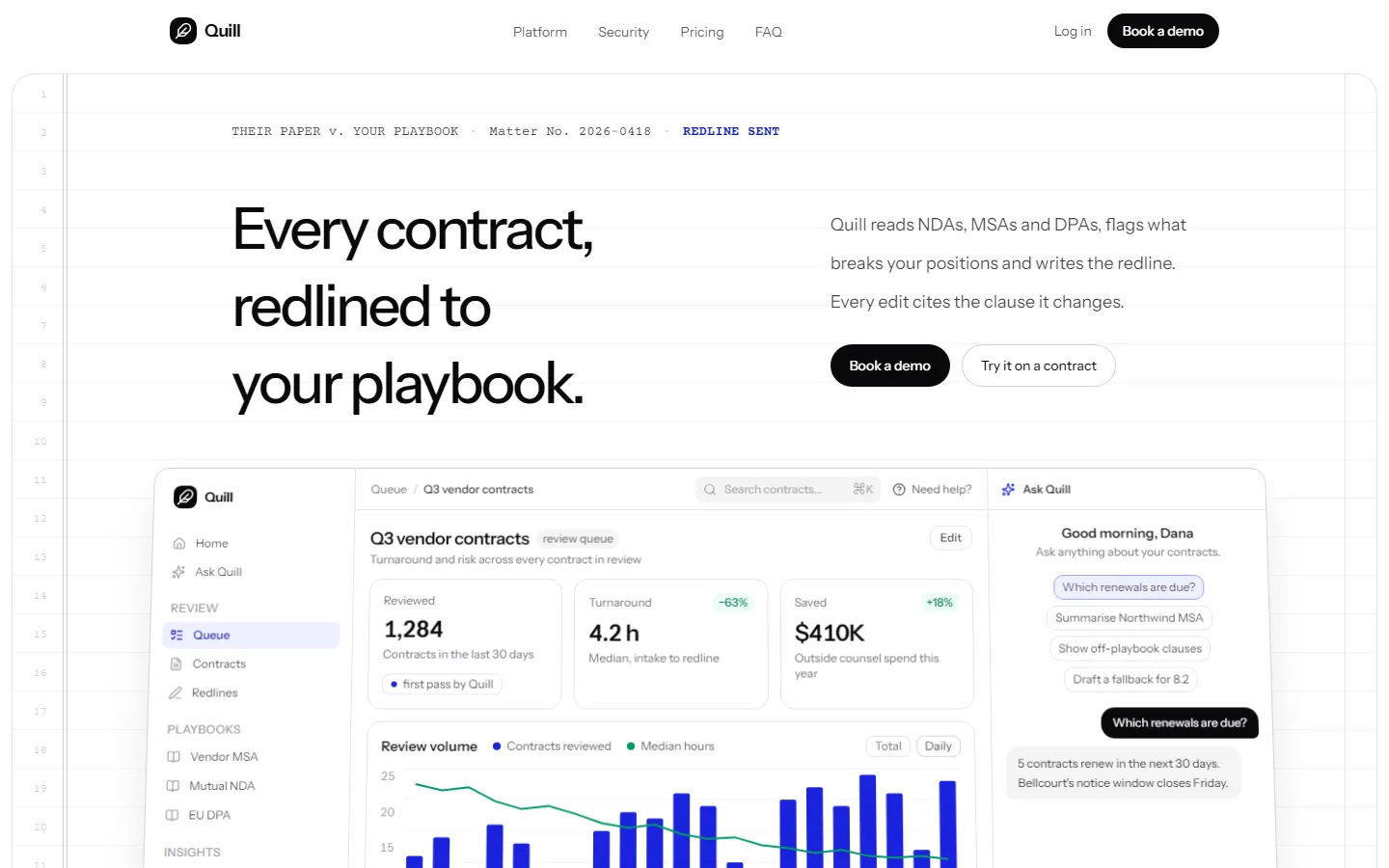
A legal AI landing page template for 2027, on pleading paper
How our legal AI landing page template is built: pleading paper as the page's texture, a product dashboard in the hero, workflows as exhibits in a binder, and a closing worded as a clause.
7 min read
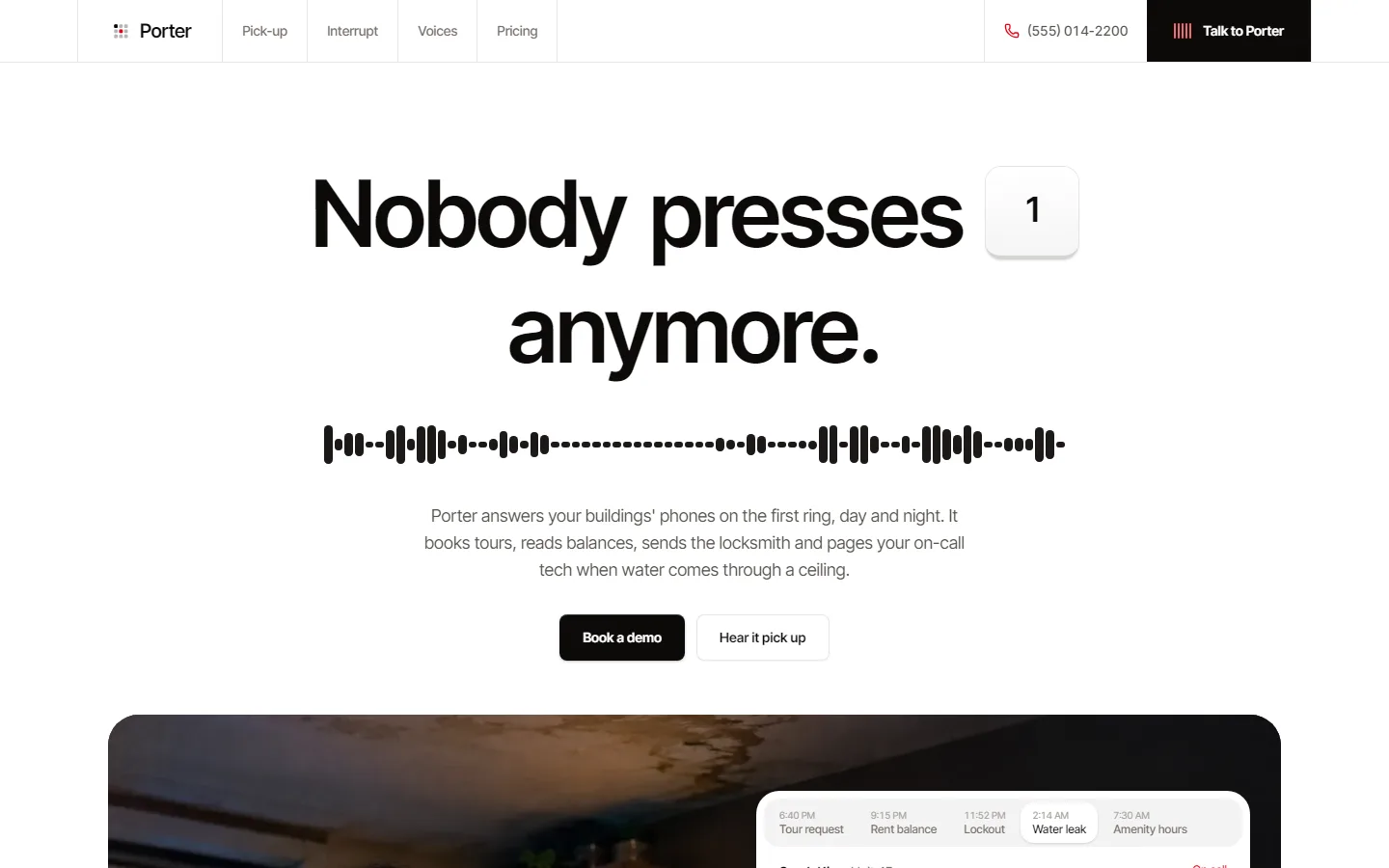
An AI voice agent landing page template for 2027, built on a phone keypad
How our AI voice agent landing page template works: a live call on frosted glass over a photo, a waveform with a playhead, a call that becomes a work order, and every section as a key on the phone.
7 min read
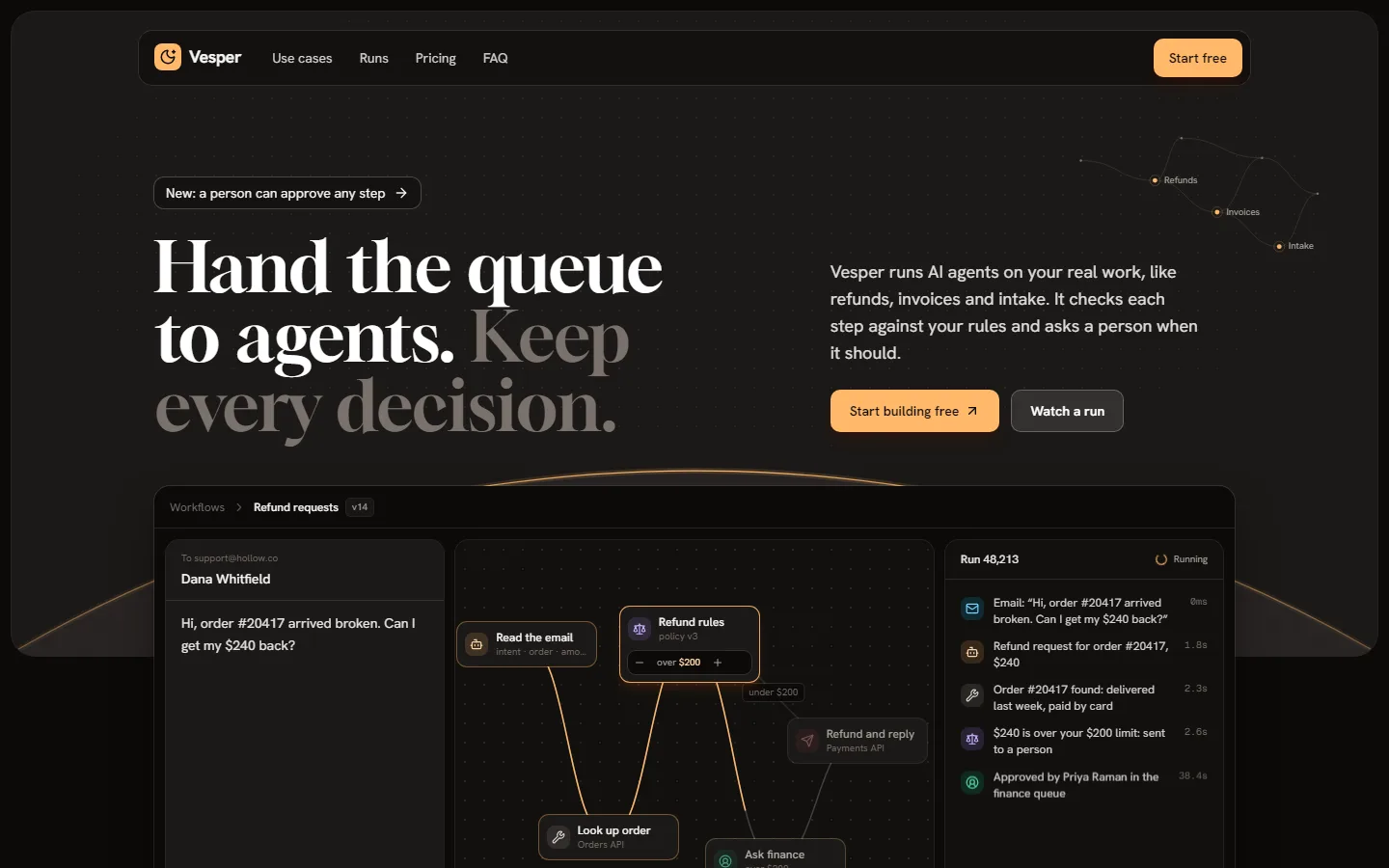
An AI agent platform landing page template for 2027 that runs your message
How our AI agent platform landing page template works: a workflow drawn as a constellation, a run that lights each step it travels, a customer email the visitor can rewrite, and a rule they own.
7 min read
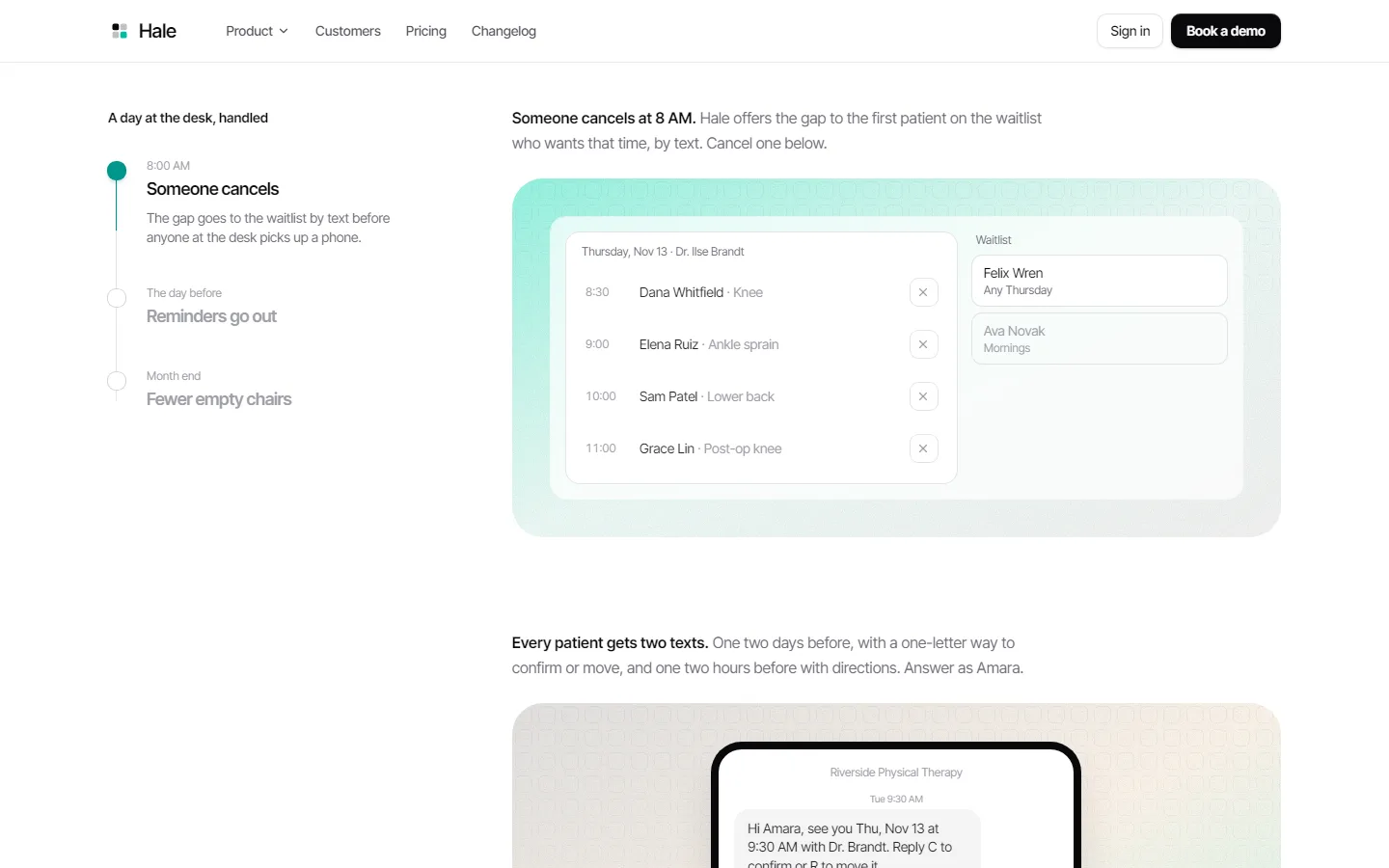
A clinic scheduling landing page template for 2027: drag a patient into a free slot
How our clinic scheduling software landing page template works: the practice's real week on frosted glass, a cancellation that the waitlist fills, a sticky day story and a changelog as proof.
7 min read
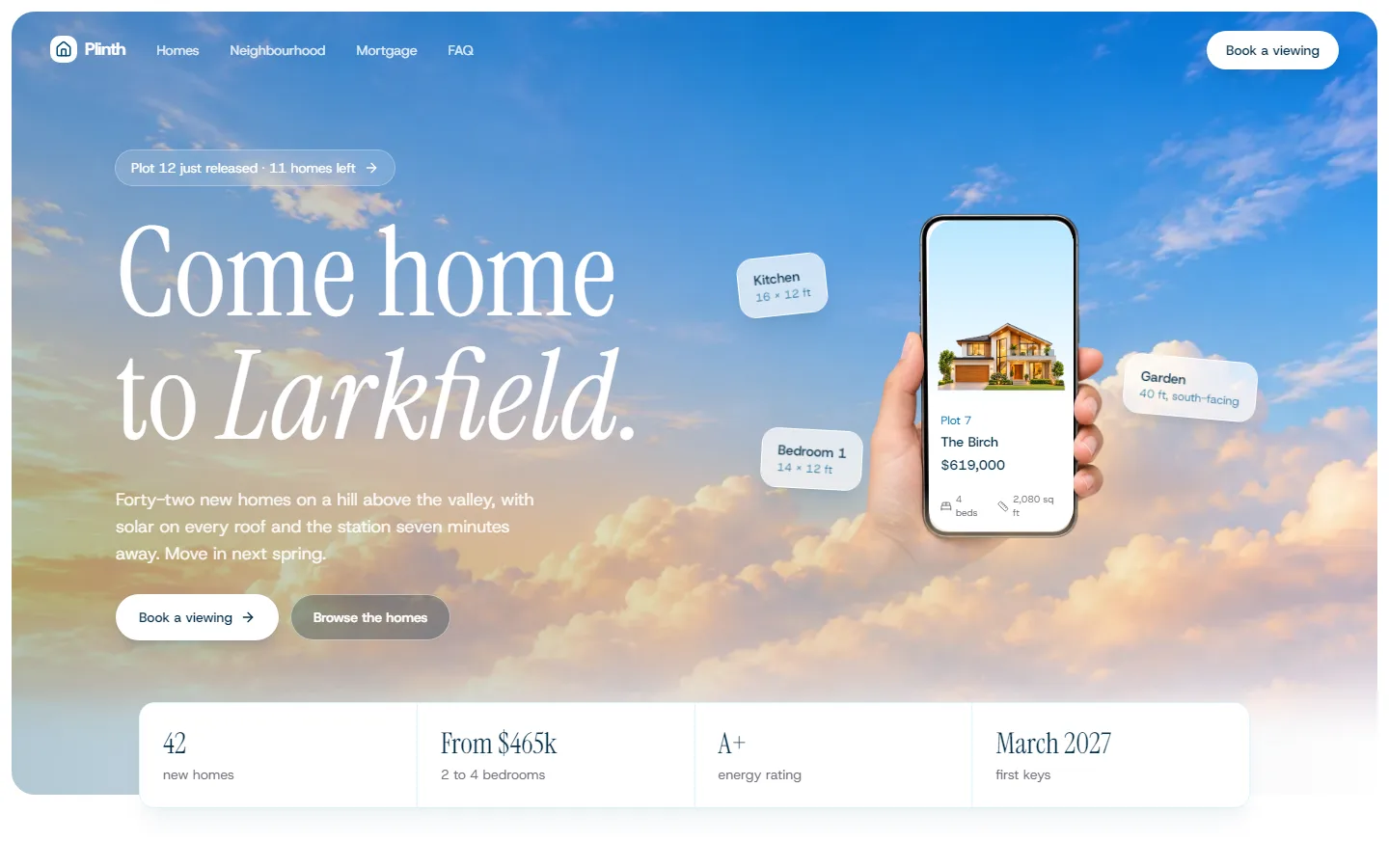
A real estate landing page template for 2027 under a golden-hour sky
How our real estate and new homes landing page template works: a hand holding a listing app with room cards flying out, glossy buying steps, a two-card home browser and a mortgage calculator.

5 min read
Liquid glass navbar in React and Tailwind for 2027
Build an Apple-style liquid glass navbar in React: a frosted pill that blurs and brightens what scrolls under it, a lit rim, and a glass lens that glides under the hovered link with Motion.

5 min read
A mega menu in React that glides between menus (2027)
Build a mega menu dropdown in React with Motion that stays open as you move between menus: the panel resizes to fit each one and the content slides in from the side the pointer came from.

4 min read
A painted sky hero section for travel websites (2027)
How our travel website hero is built: a full-bleed painted golden-hour sky, a paper plane that banks and bobs on the wind, an Instrument Serif headline and coral pill buttons.
6 min read
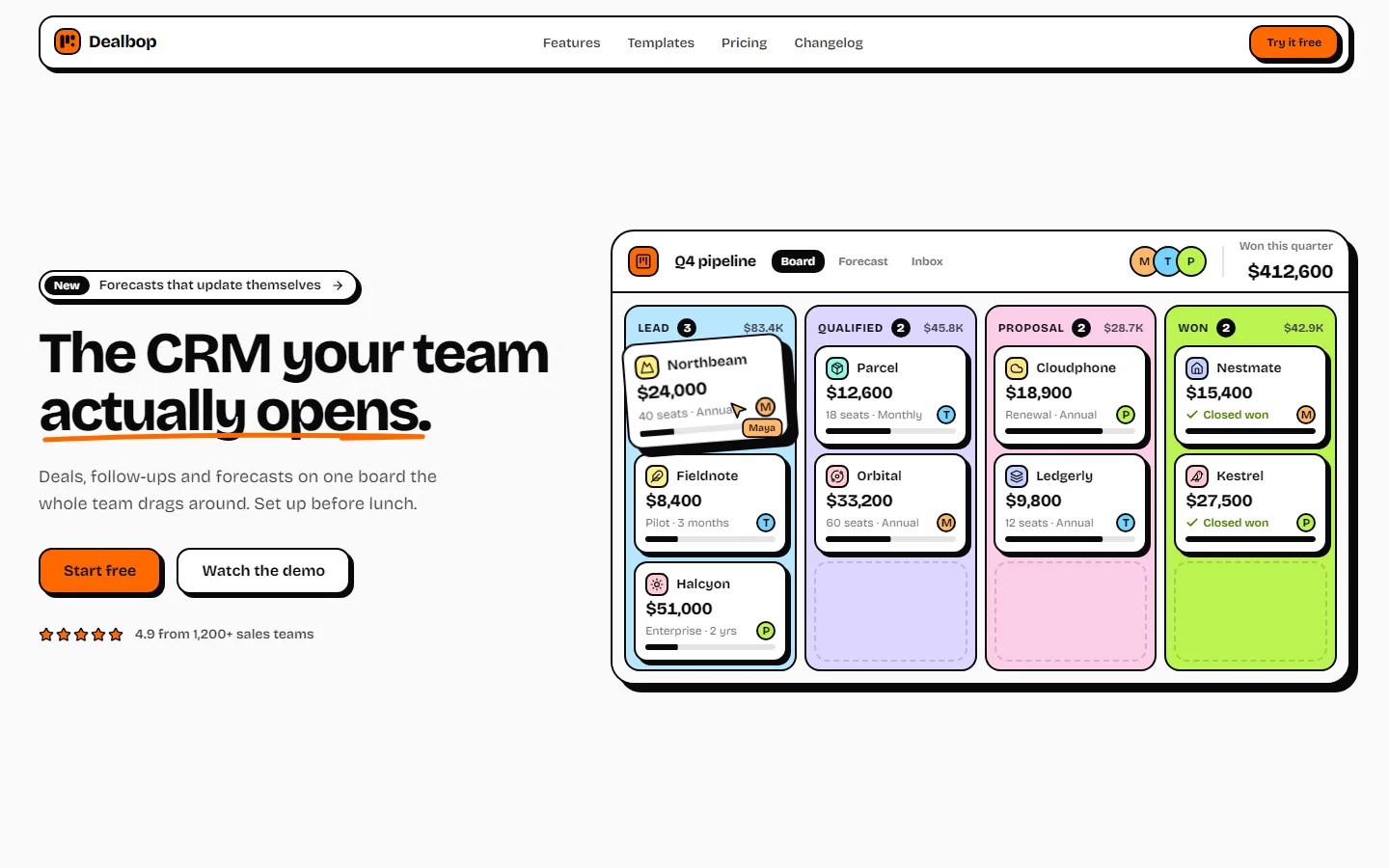
A neo-brutalist hero section with a live CRM board (2027)
How our neo-brutalist hero works: hard shadows and colour blocks around a live pipeline board where a teammate's cursor carries deals across columns, run by a small state machine.
6 min read
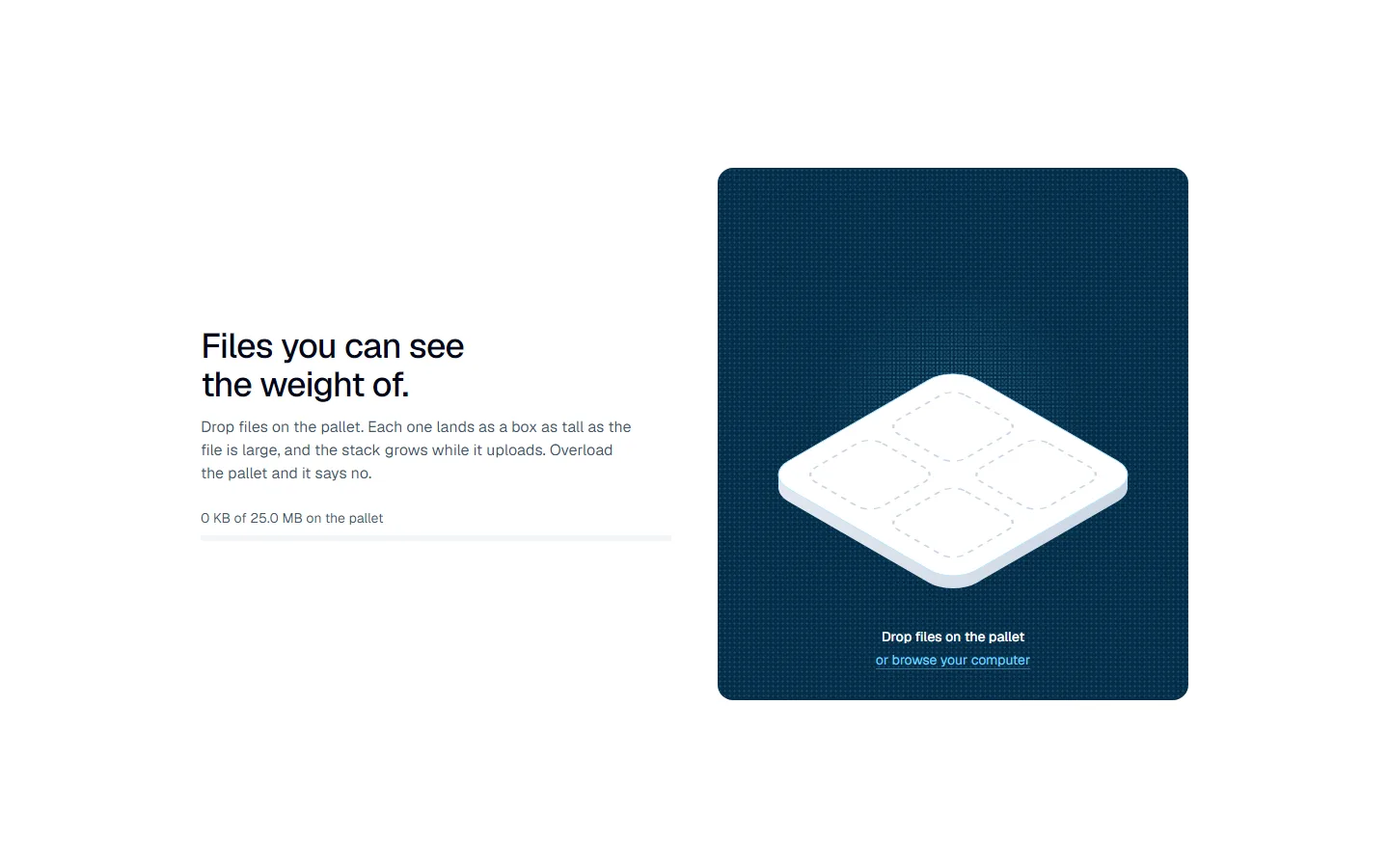
Drag and drop file upload in React, where files stack as boxes (2027)
Build a drag and drop file upload component in React: files become boxes on a pallet as tall as they are large, a dot board that lights under a dragged file, real progress and capacity limits.
5 min read
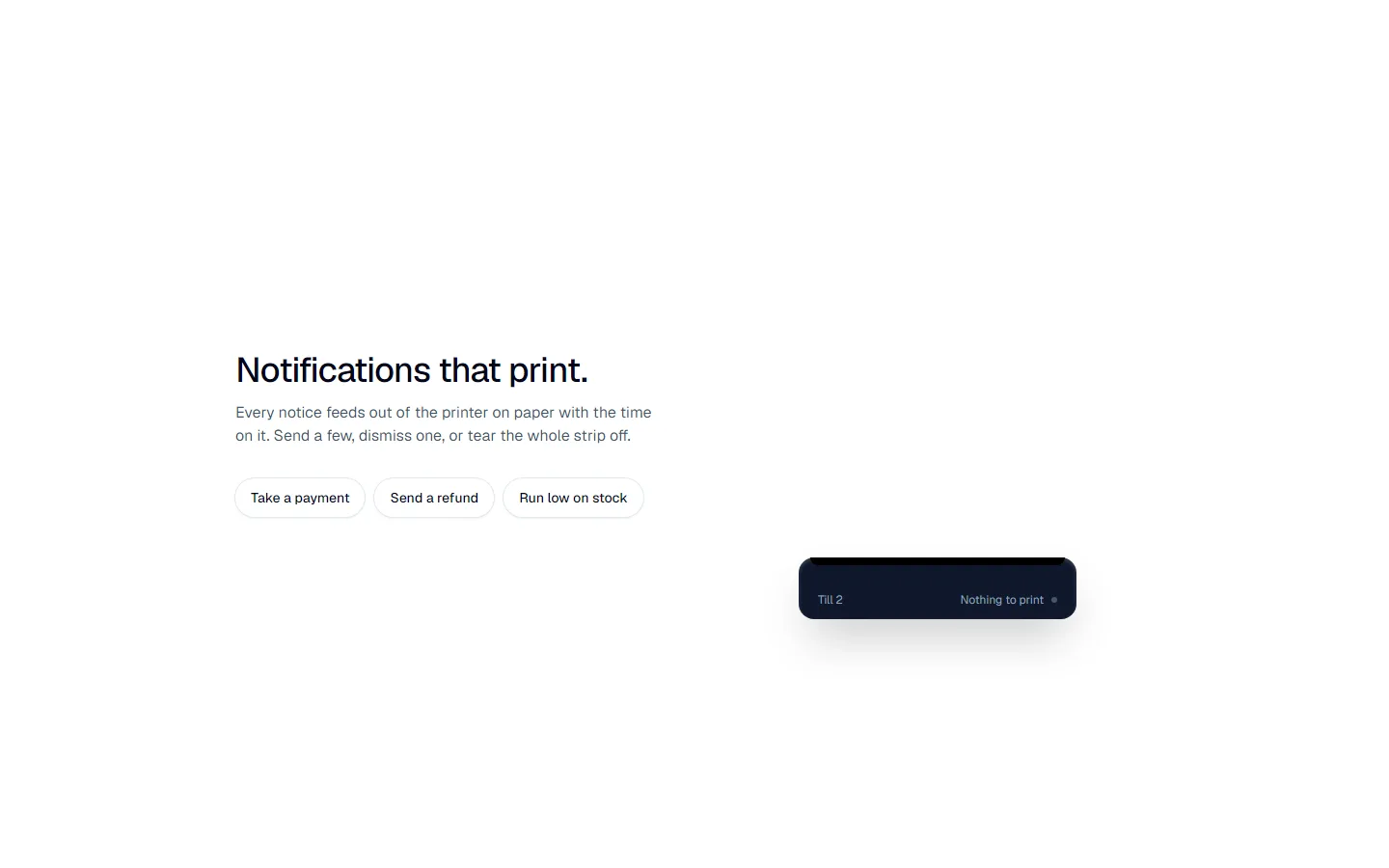
Toast notifications in React, printed like a receipt (2027)
Build toast notifications in React that a small receipt printer feeds out on paper in jerks, with the real time on each, earlier ones riding up the strip and the oldest dropping off.
6 min read
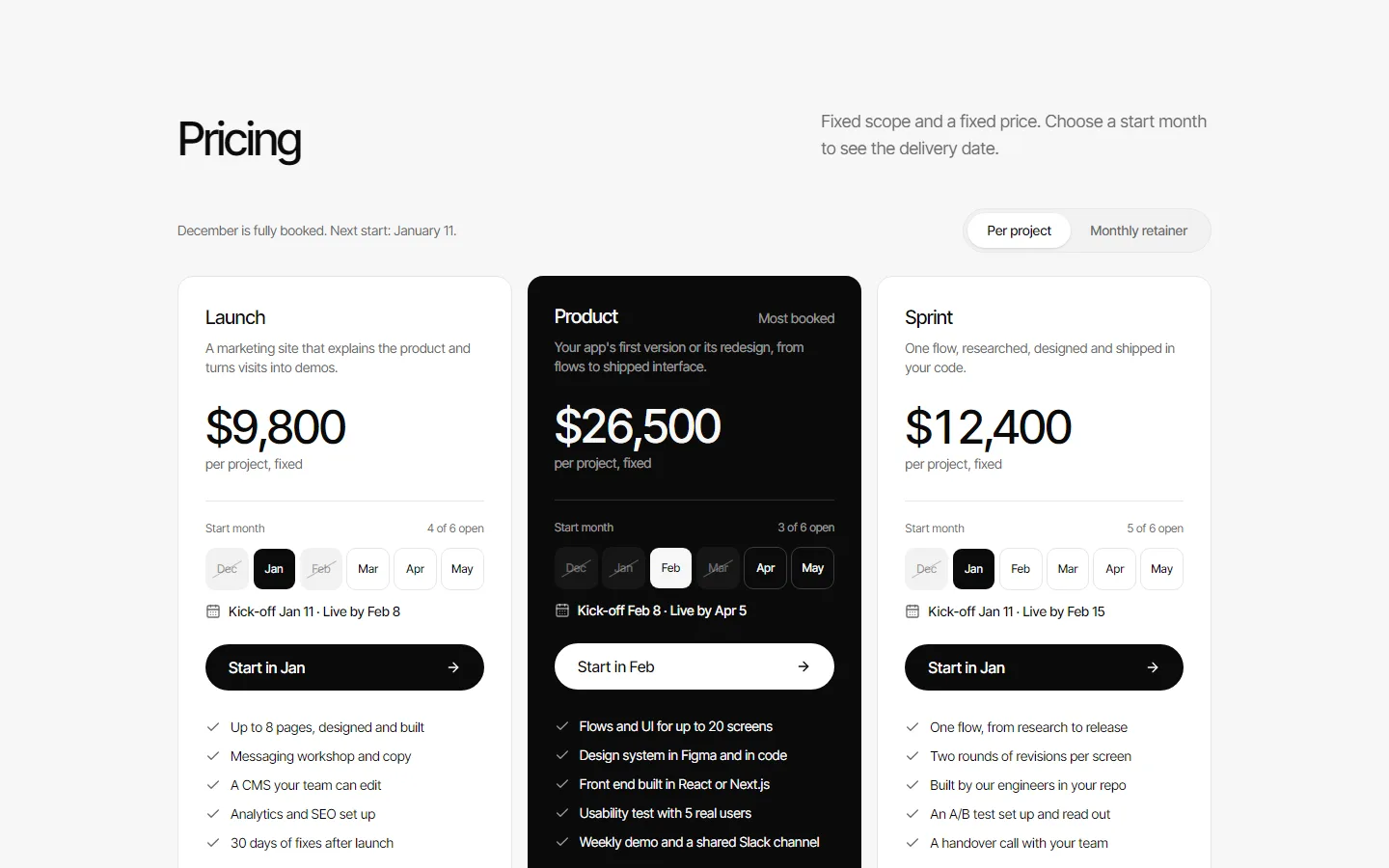
An agency pricing section that shows real availability (2027)
Build a pricing section in React that sells scarcity honestly: each plan shows the months it can still start in, booked ones struck through, with a per-project or retainer switch and counting prices.
6 min read
A sticky scroll product tour where the camera pans the real app (2027)
Build a sticky scroll feature section in React: features scroll by while the product screen stays pinned, and a camera pans and zooms to the part each feature is about.

5 min read
A navbar made of folder tabs: building it in React
Build a navbar whose links are paper folder tabs standing on the page: the section you're reading steps forward and joins the page, with a layout that moves and recolours only.
6 min read
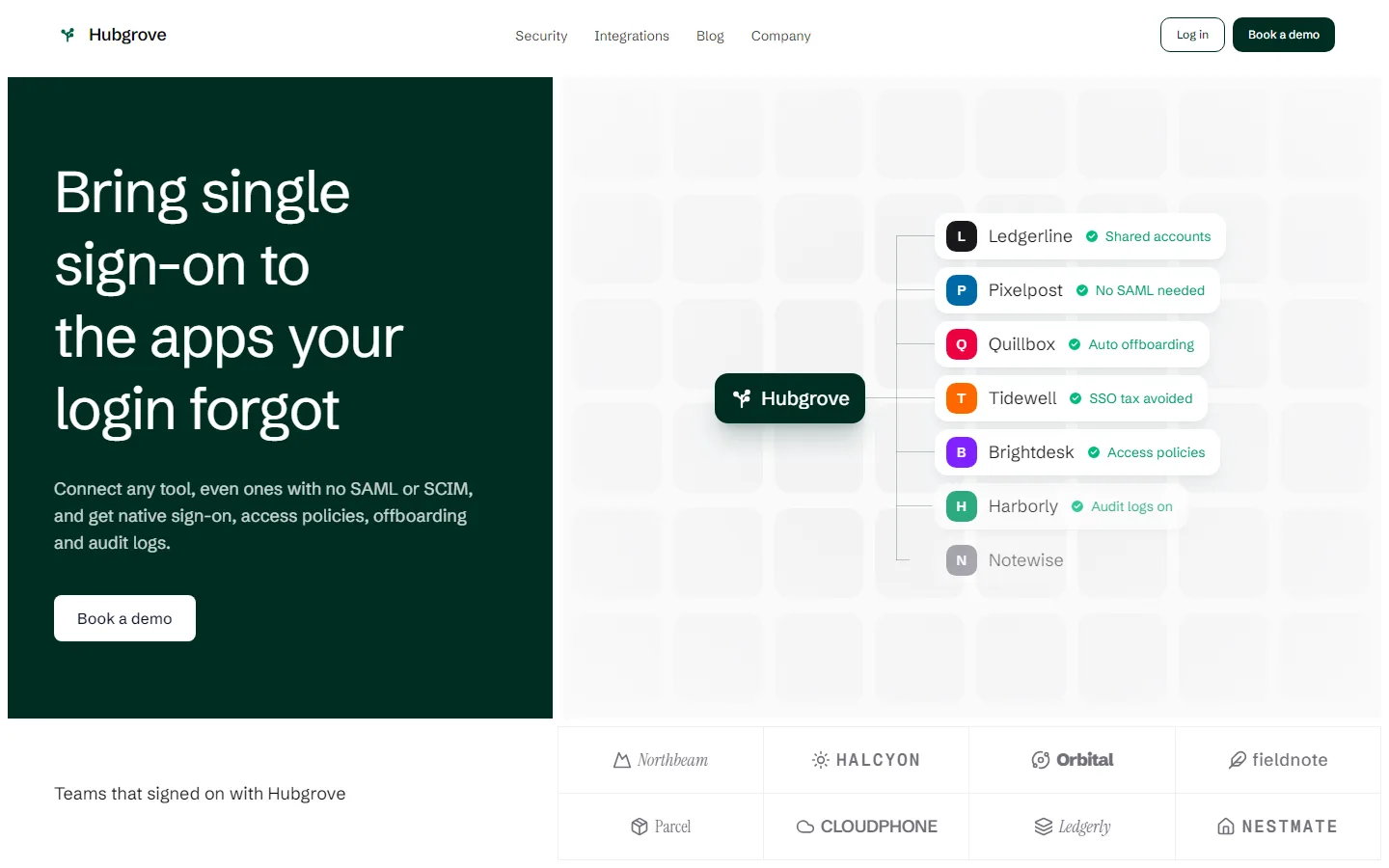
A hero section that connects every app, one by one
Build a SaaS hero where the product's hub fans out to every app it integrates with, branches drawing in and waiting apps connecting one after another, in React and Motion.
6 min read
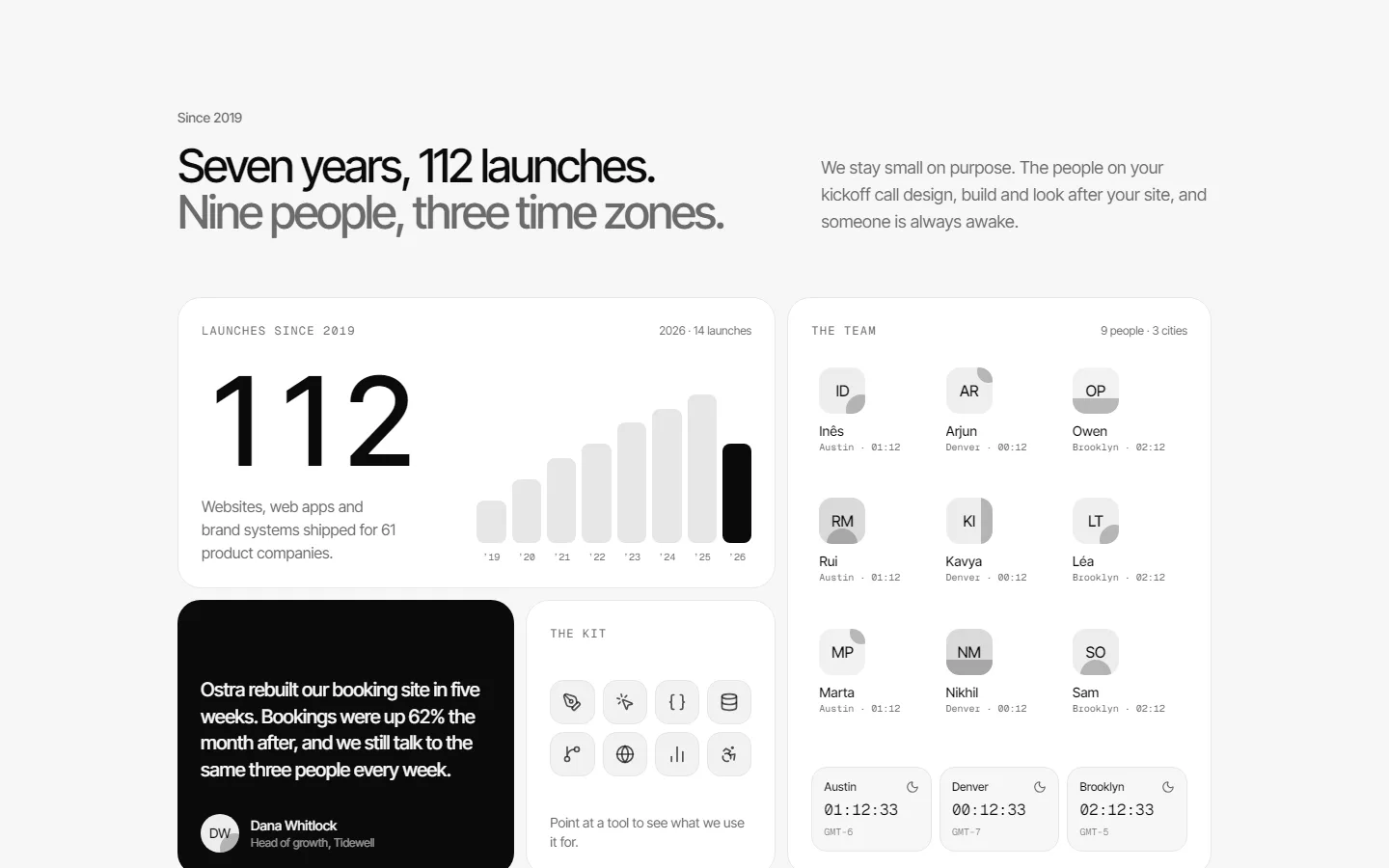
A stats section that proves itself: numbers, people and live clocks
Build a proof section as a bento in React: a counted headline number with a bar per year, the team with live local times, one quote, the tools used and client names drifting past.
6 min read
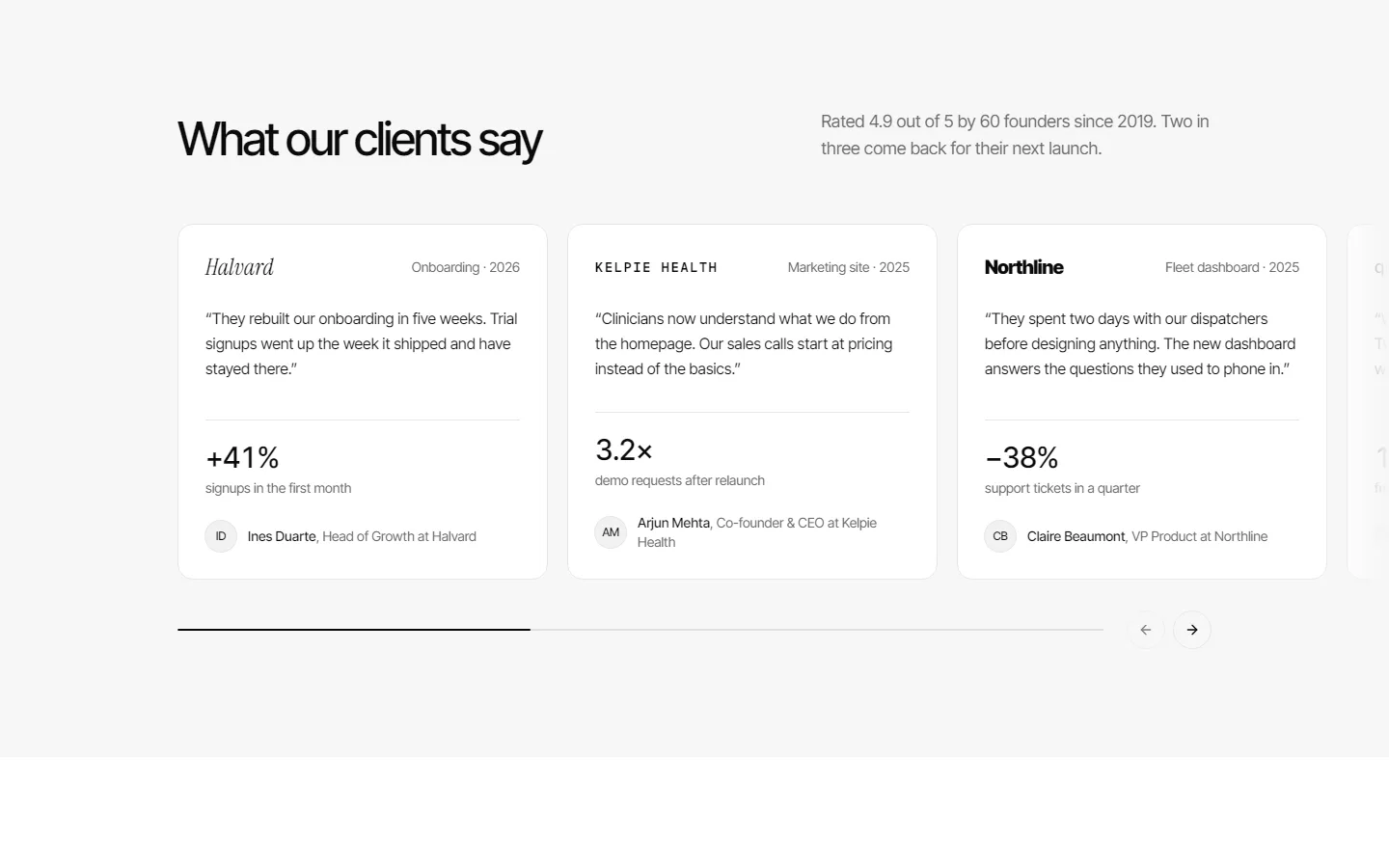
A testimonial carousel you can drag, flick and step through
Build a draggable testimonial carousel in React with Motion: card-by-card snapping, flick momentum, a readable scroll rail, arrow keys and upright swipes left to the page.
6 min read
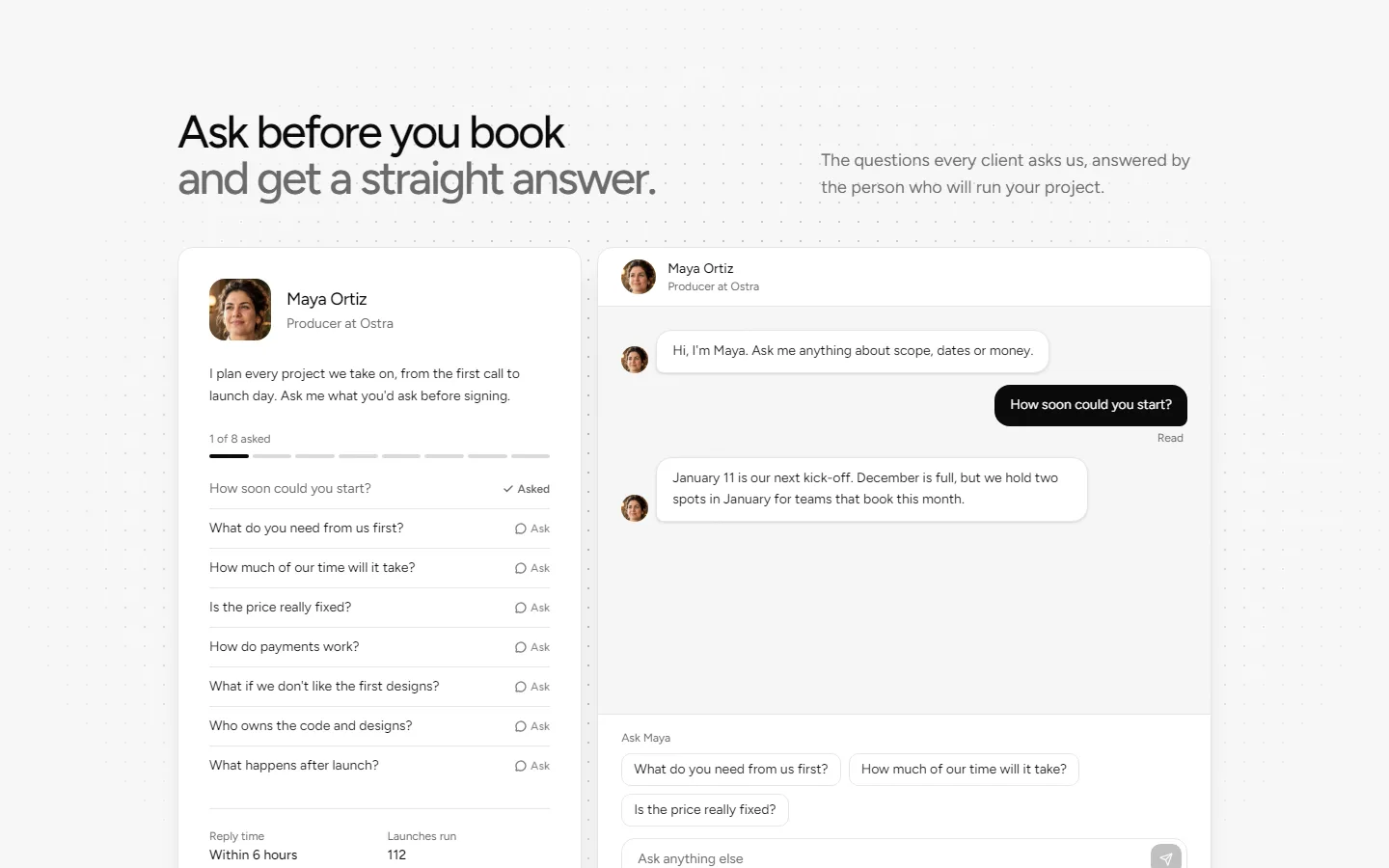
An FAQ as a conversation: a person who types the answer
Build a chat-style FAQ in React: tap a question and watch a real person read it, type the answer in bursts, slip on a word and fix it, then send.
6 min read
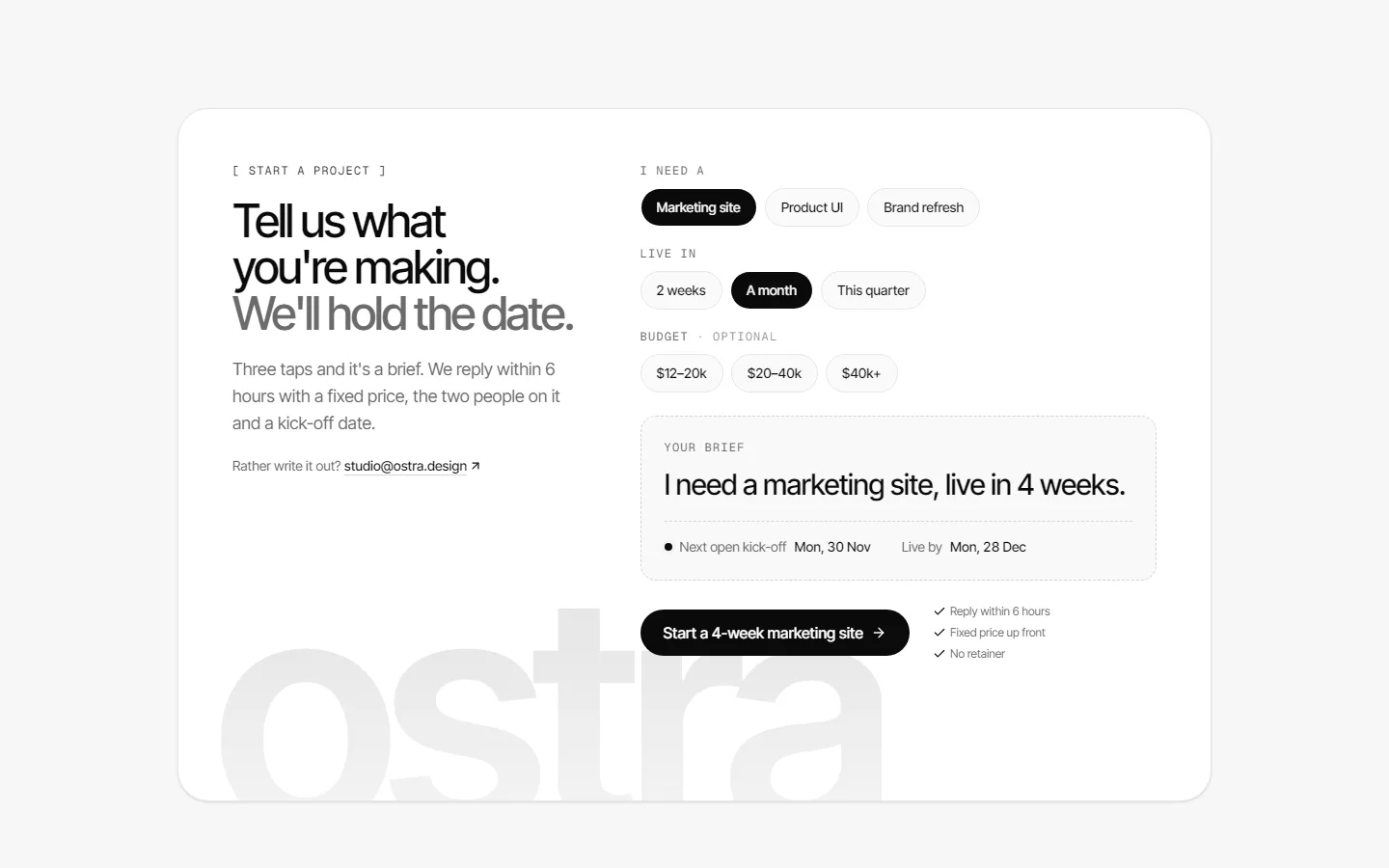
A call to action that writes the project brief
Build a closing CTA section in React where visitors pick chips to build a one-line brief, and the button turns into exactly that project with real kick-off and launch dates.
6 min read
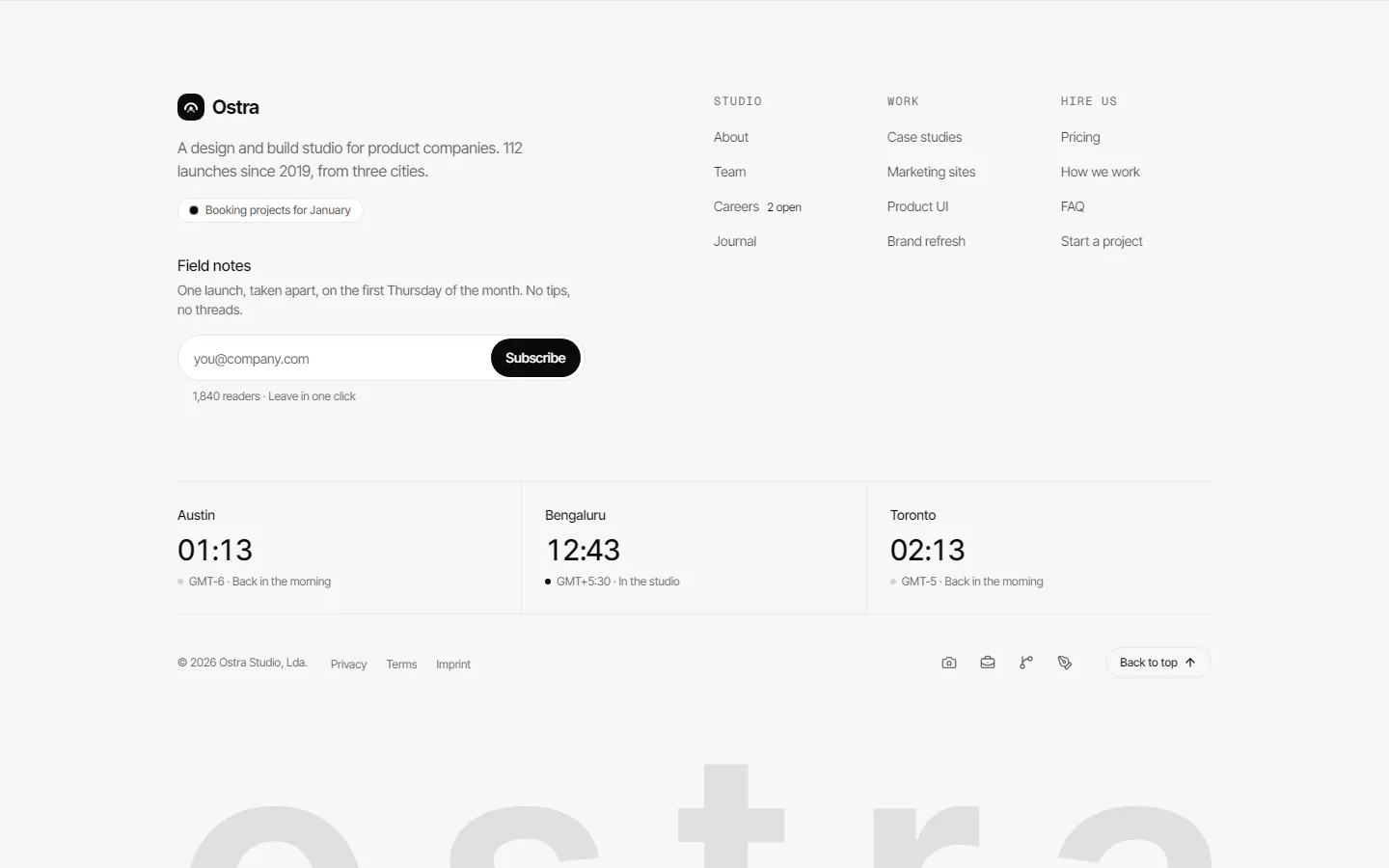
A footer with a newsletter and a wordmark that leans toward you
Build a landing page footer in React: a newsletter form with a real success state, link columns, live studio clocks and a full-width wordmark whose letters rise toward the pointer.
6 min read
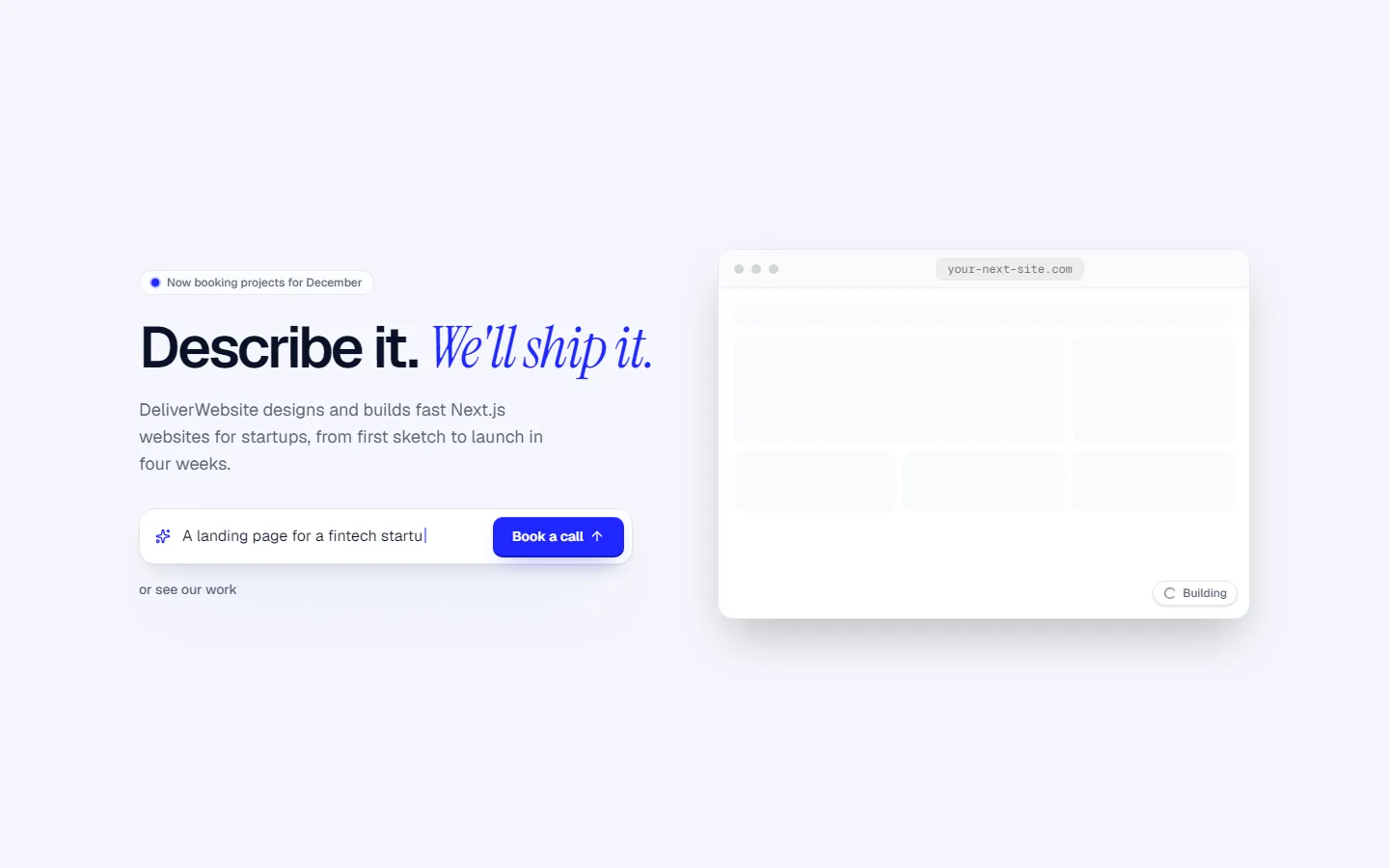
Prompt to page: an AI hero where the site builds itself
Build a describe-it-and-it-gets-built showcase in React: a prompt types itself while skeleton blocks glide into a wireframe page, then rearrange for the next prompt.
6 min read
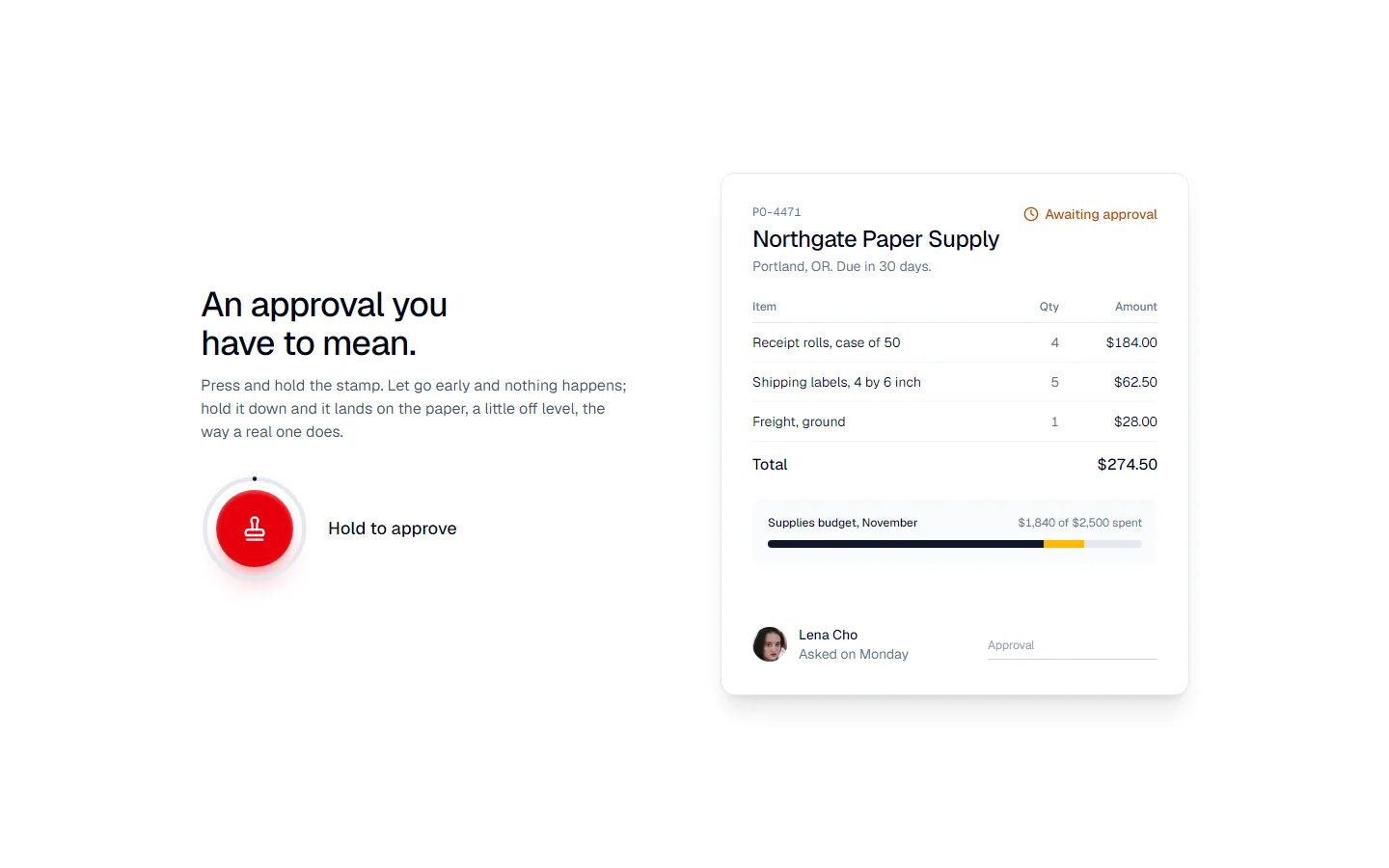
Hold to confirm: a button you have to mean
Build a press-and-hold confirm button in React drawn as a rubber stamp: a ring that fills while held, falls back if let go, and an uneven red imprint that lands on the document.
9 min read
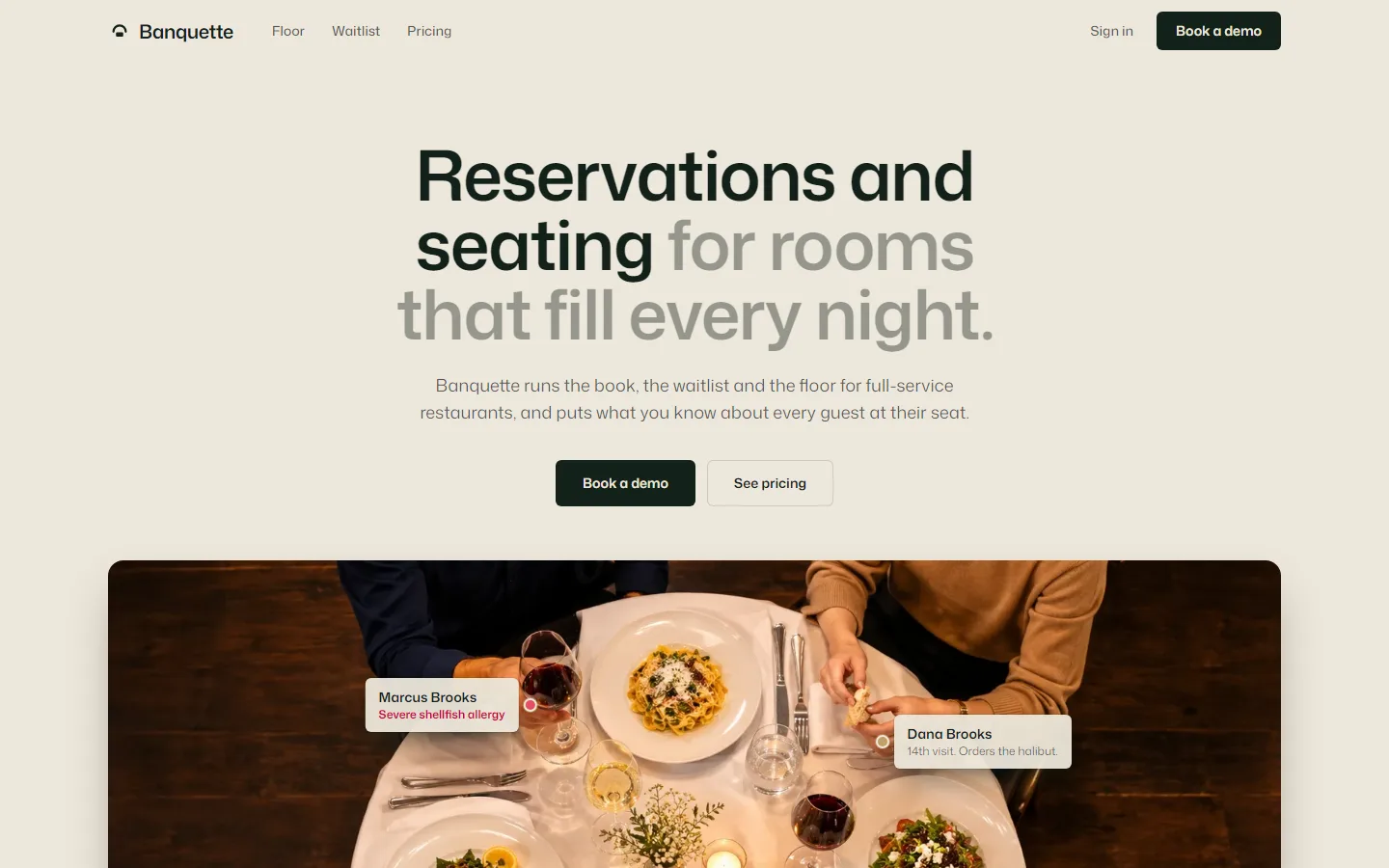
The 20 best React UI components for 2027, picked from 110
We reviewed all 110 free components in DeliverWebsite UI and picked the 20 best for 2027: landing page templates, a liquid glass navbar, a file upload, toasts, pricing and more, each in React, Tailwind and Motion.
6 min read
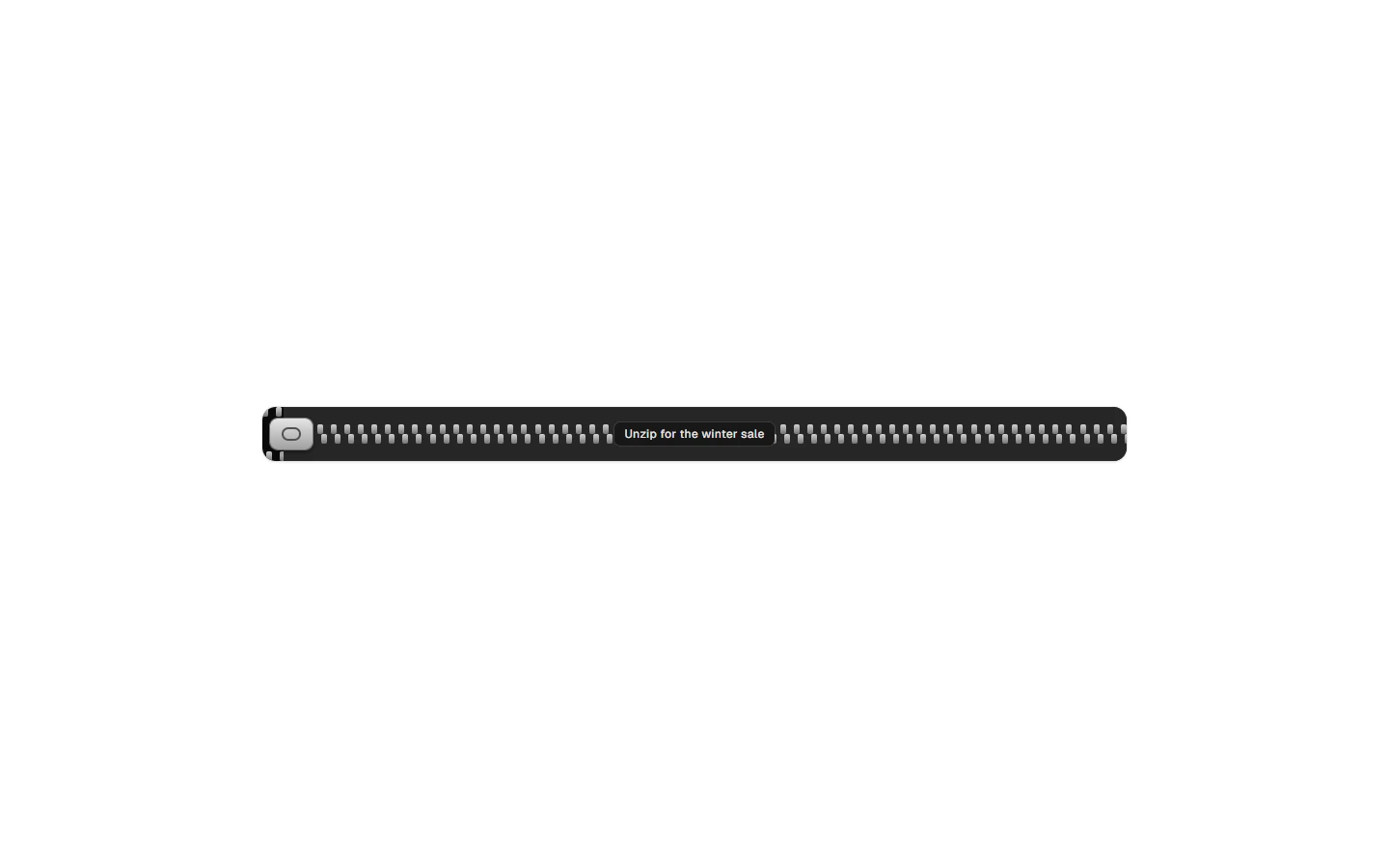
How to build a zipper reveal animation in React
Build a draggable zipper that unzips to reveal content in React with Motion: one motion value, two clip-paths, a spring that decides open or shut, and a keyboard path.
6 min read
Scratch card in React: a canvas foil that reveals a coupon
Build a scratch-to-reveal coupon in React with a canvas: destination-out strokes, sampling how much is cleared, a falling foil and an accessible reveal button.
5 min read
Pull cord animation in React: a roller blind announcement
Build a pull cord that drops a roller blind announcement in React with Motion drag: an elastic bead, a stretching cord, a threshold and a spring-loaded blind.
7 min read
Building an interactive org chart in React for a recruiting page
How our recruiting landing page uses an org chart as its hero: open seats that expand into a role's pipeline with shared layout animations, cards dealt to a panel and a hire dropped into a seat.
6 min read
A receipt that prints itself: odometer numbers and torn paper in React
How our spend management landing page prints a receipt line by line, rolls totals on odometer digits and tears its edges, with React, Tailwind and Motion.
6 min read
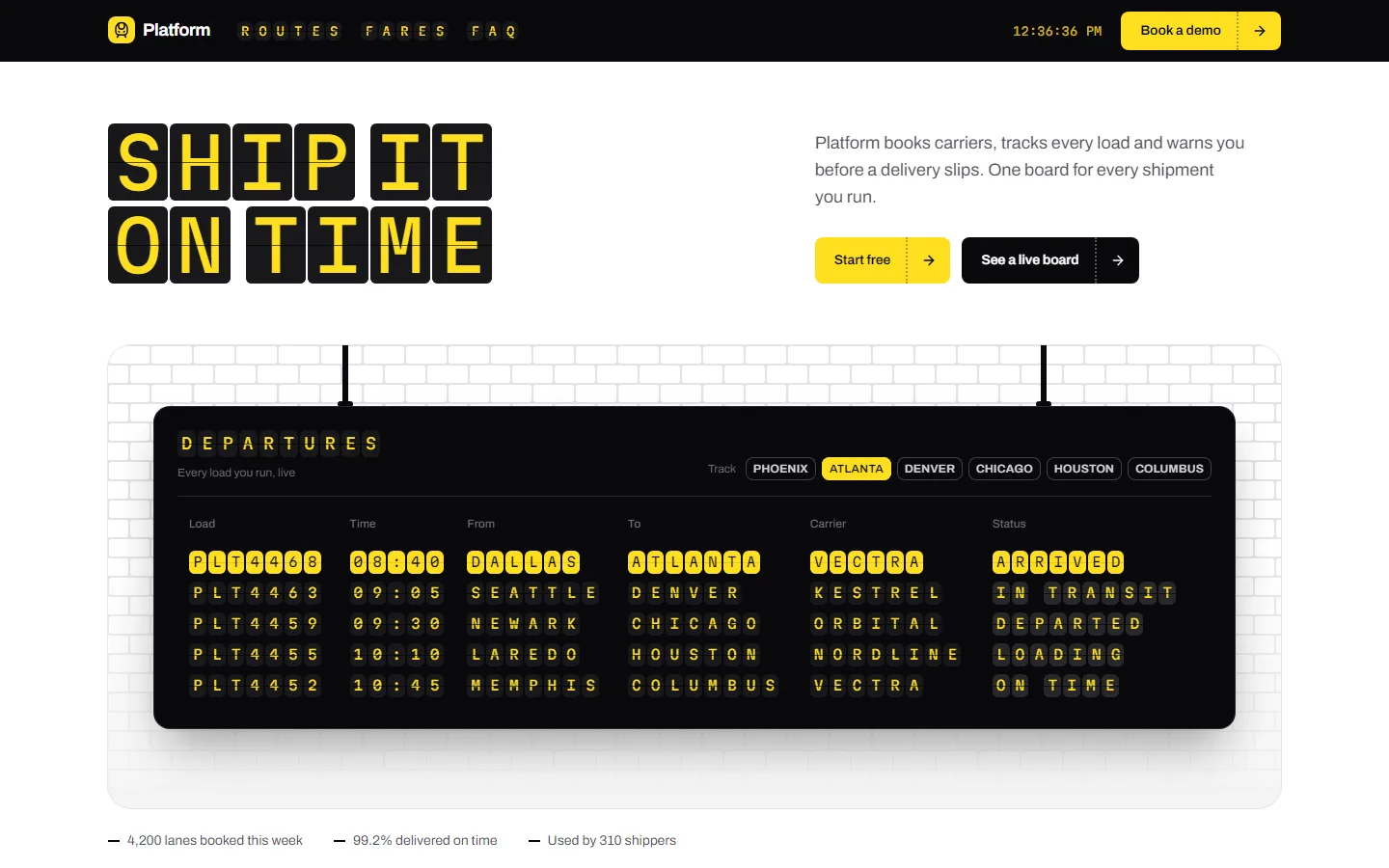
Split-flap display in React: a departure board that flips in 3D
Build a split-flap departure board in React: tiles that scramble through letters, a falling 3D flap on each change, staggered rows and a server-safe random stand-in.
6 min read
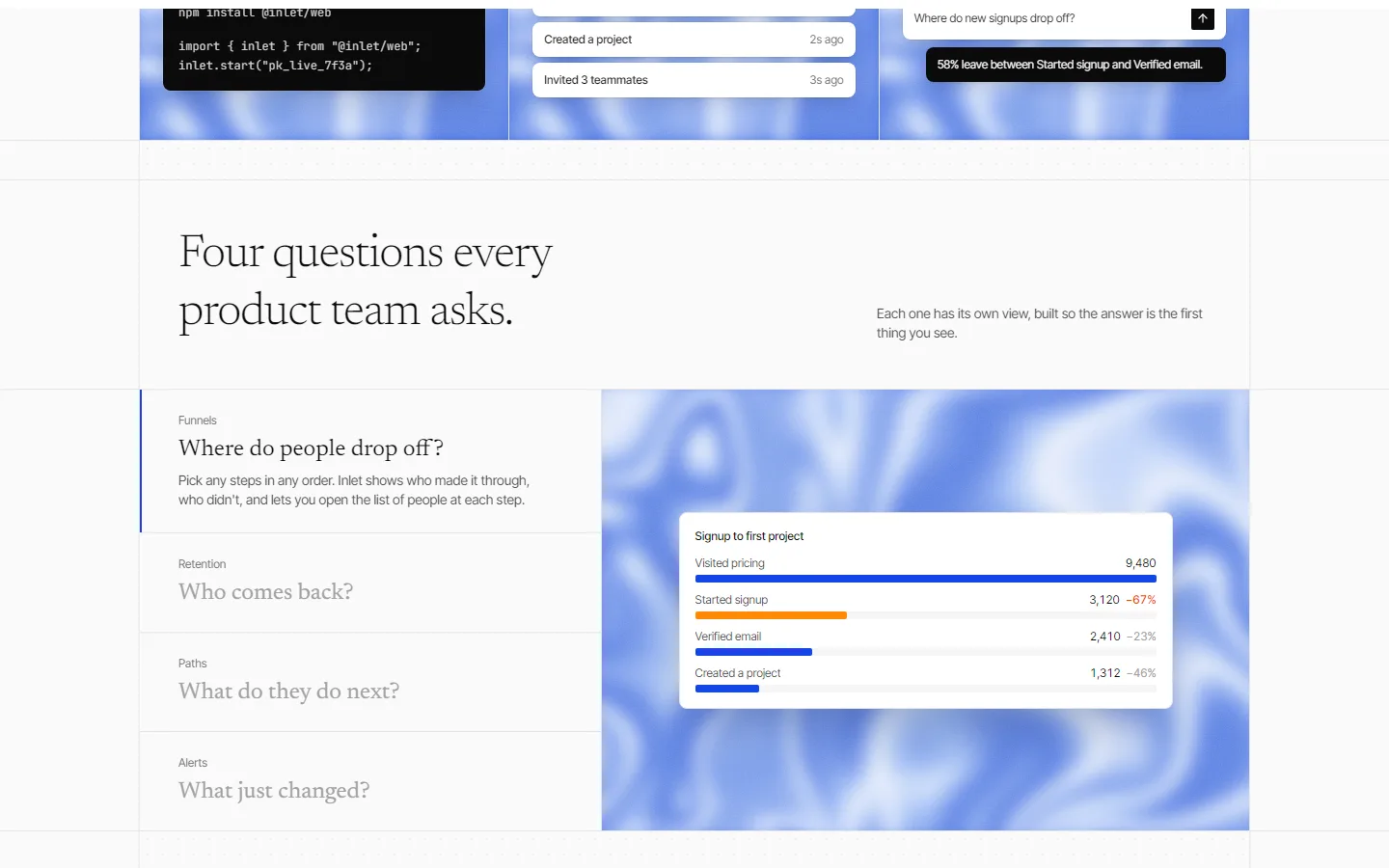
Marbled paper backgrounds on a canvas, without WebGL
Draw a soft marbled background in plain canvas 2D: value noise folded through itself, combed into veins, drawn small and scaled up, capped at 12 frames a second.
7 min read
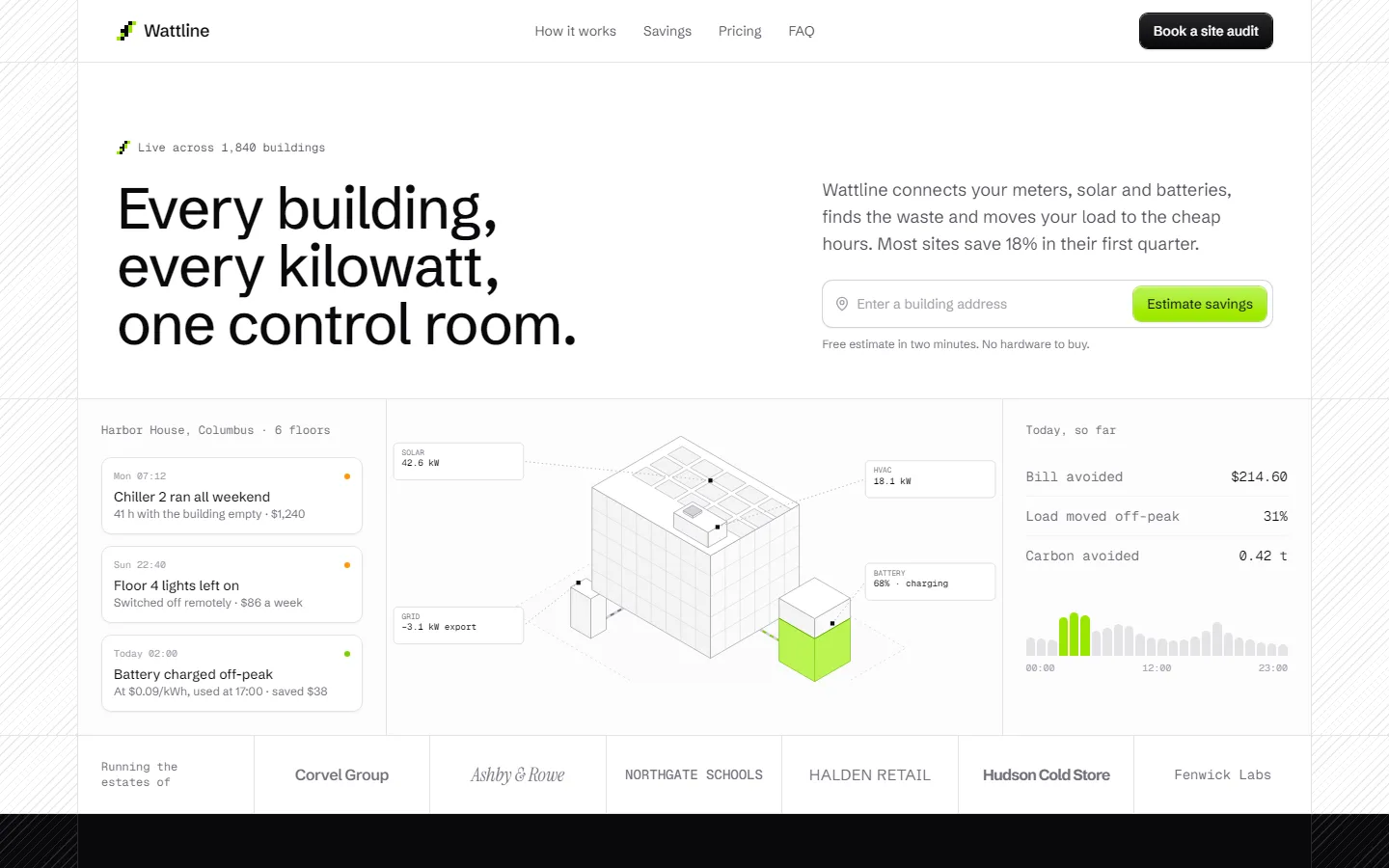
An isometric building in SVG, drawn in code with React
Draw an isometric building in React with a tiny projection function: boxes to faces, a battery filled to its charge, power flowing along cables and labels on dotted leaders.
6 min read
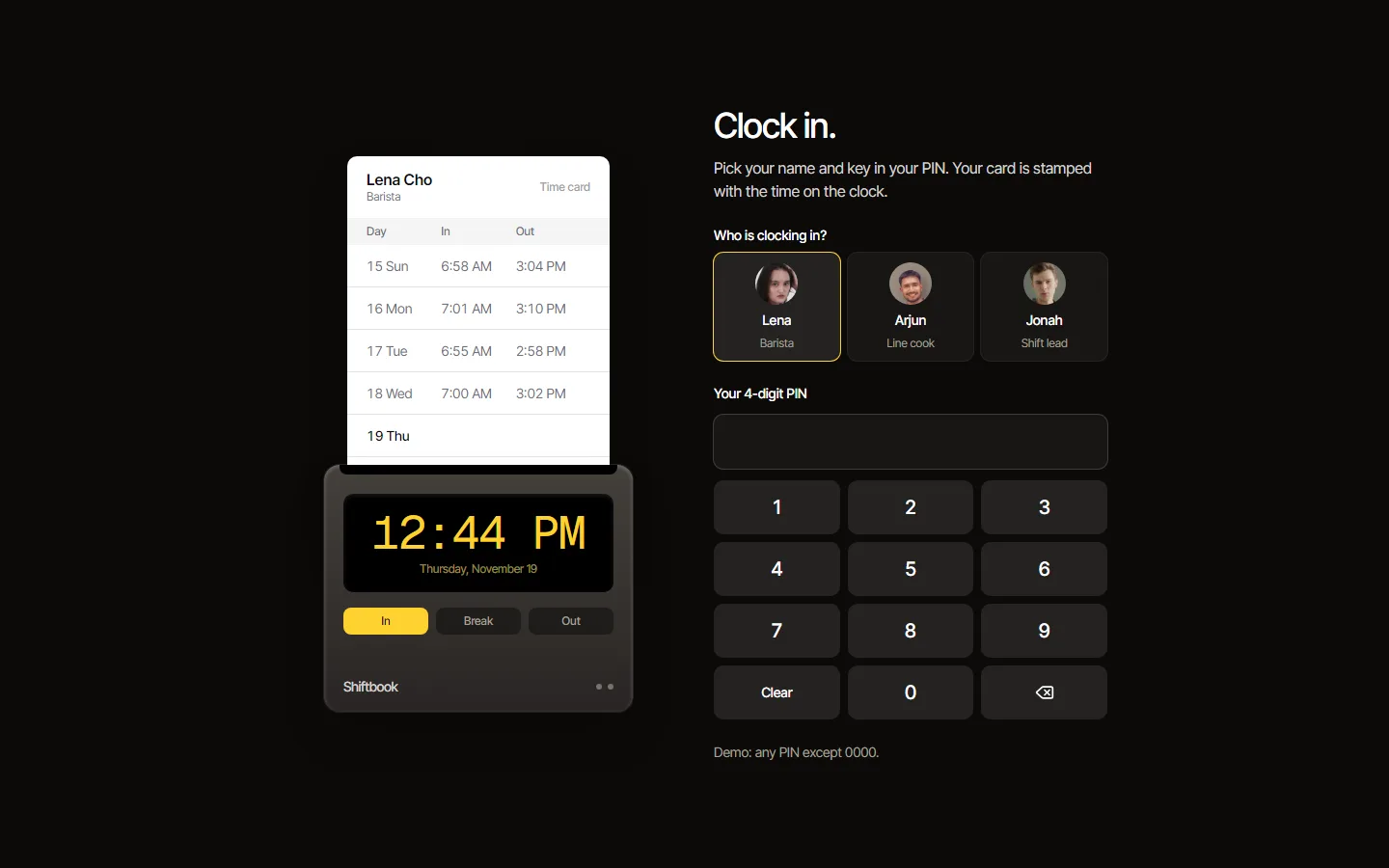
A PIN login for shift workers, drawn as a time clock
Build a PIN sign-in for shared tablets in React: a real password field with large keys, a time clock drawn in code, and a card that drops in and gets stamped with the real time.
5 min read
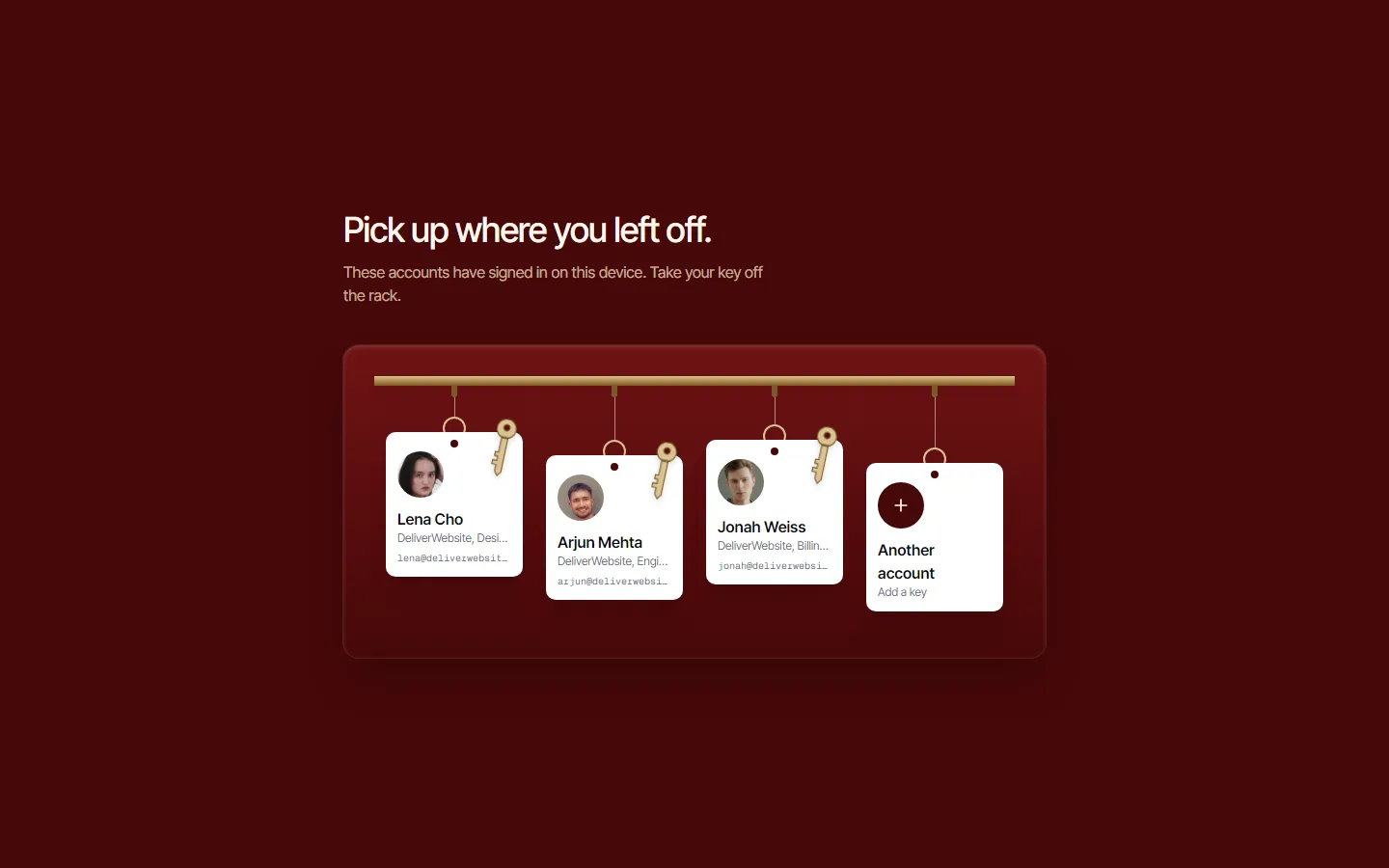
An account switcher drawn as a key rack
Build a choose-an-account page in React where every saved account hangs as a key: swinging keys on springs, lifting one to sign in, and an empty hook for a new account.
6 min read
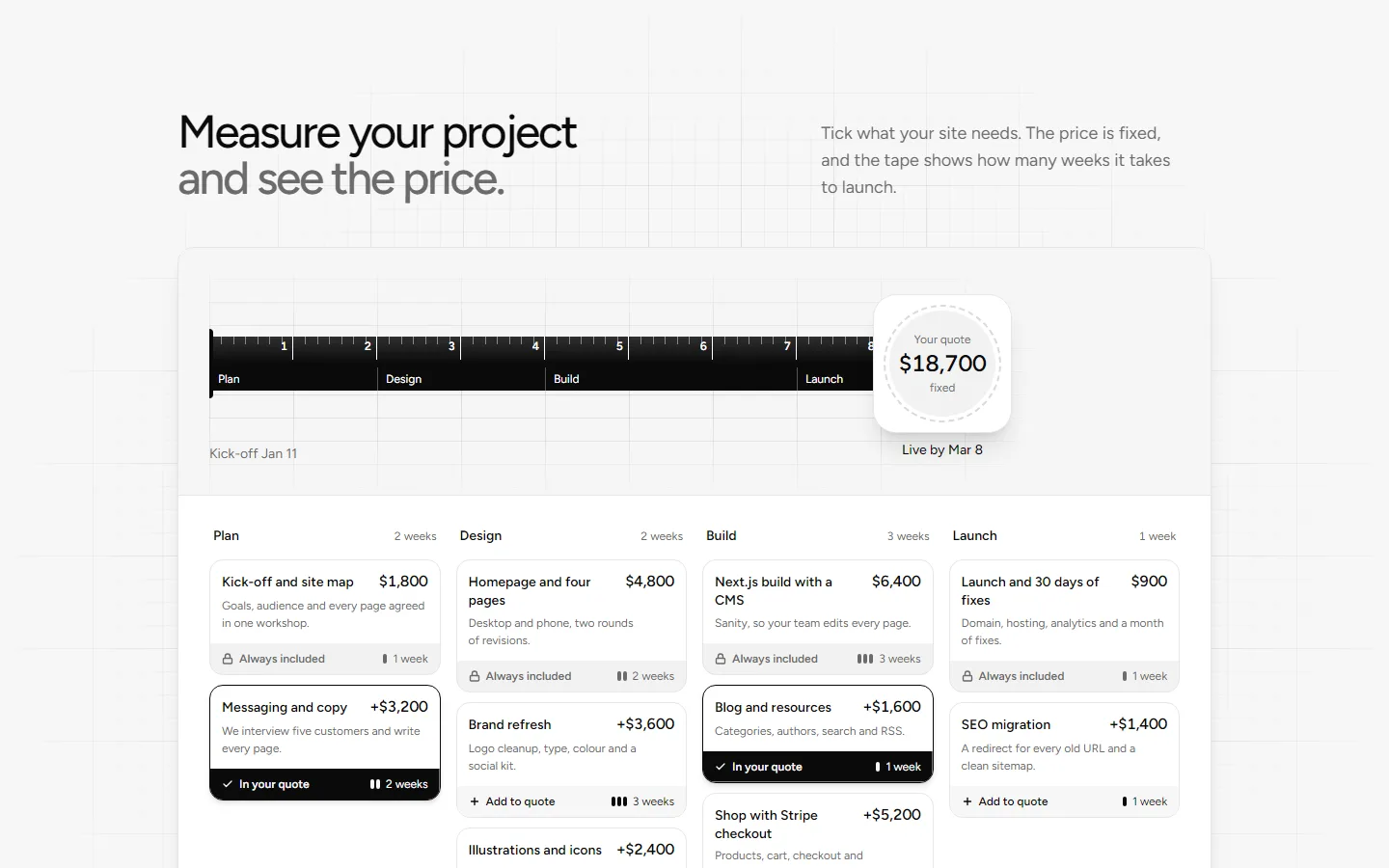
A pricing calculator drawn as a tape measure
Build a website cost calculator in React that measures the project as a tape: ticking pieces pulls the tape out week by week and slides the price along, with transforms only.
7 min read
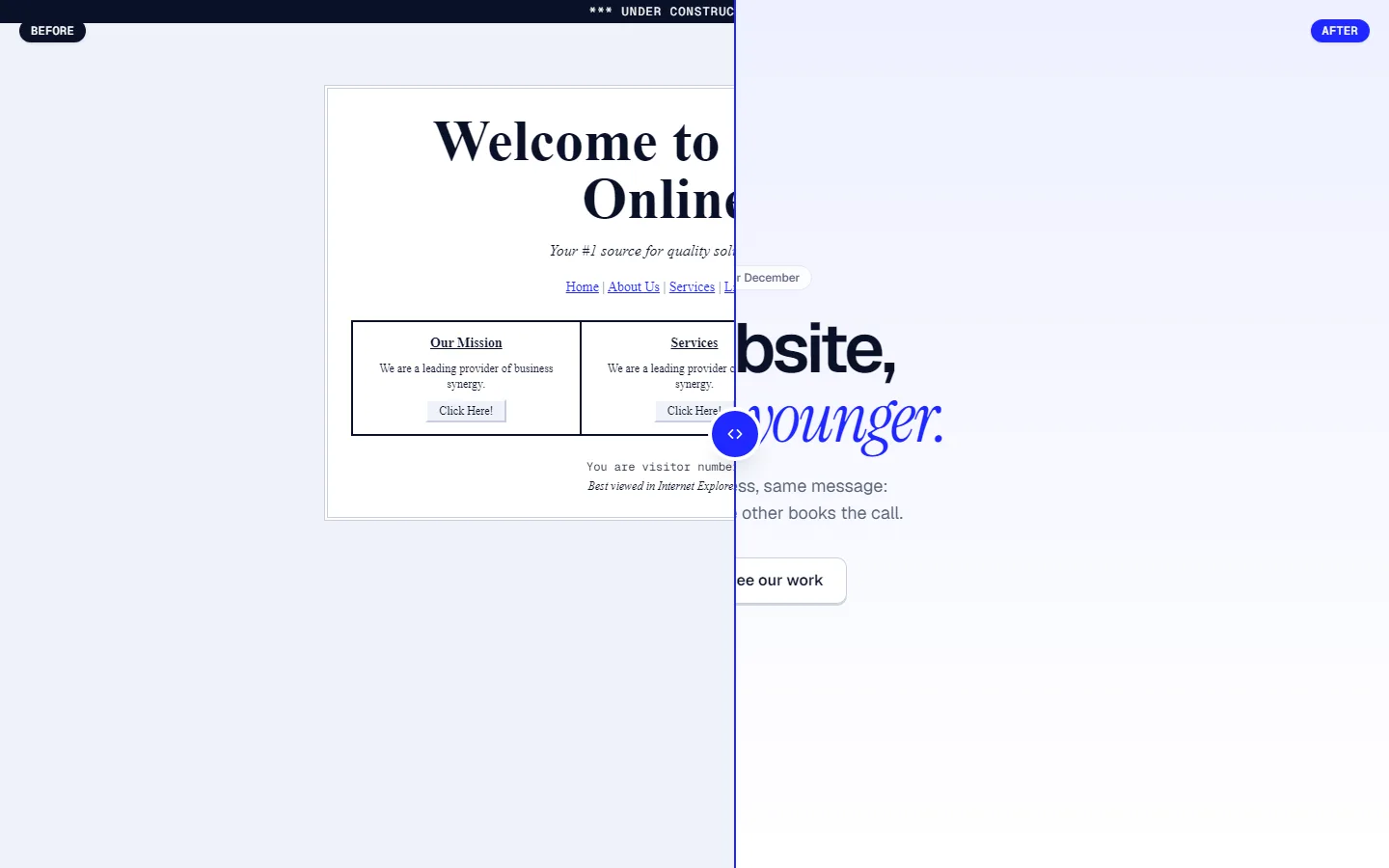
Landing page design trends for 2027: what we are building, and what we stopped
Seven landing page design trends for 2027, from a team that ships React templates every week: interfaces you touch, real photos over AI images, one idea per page, and the habits to drop.
7 min read
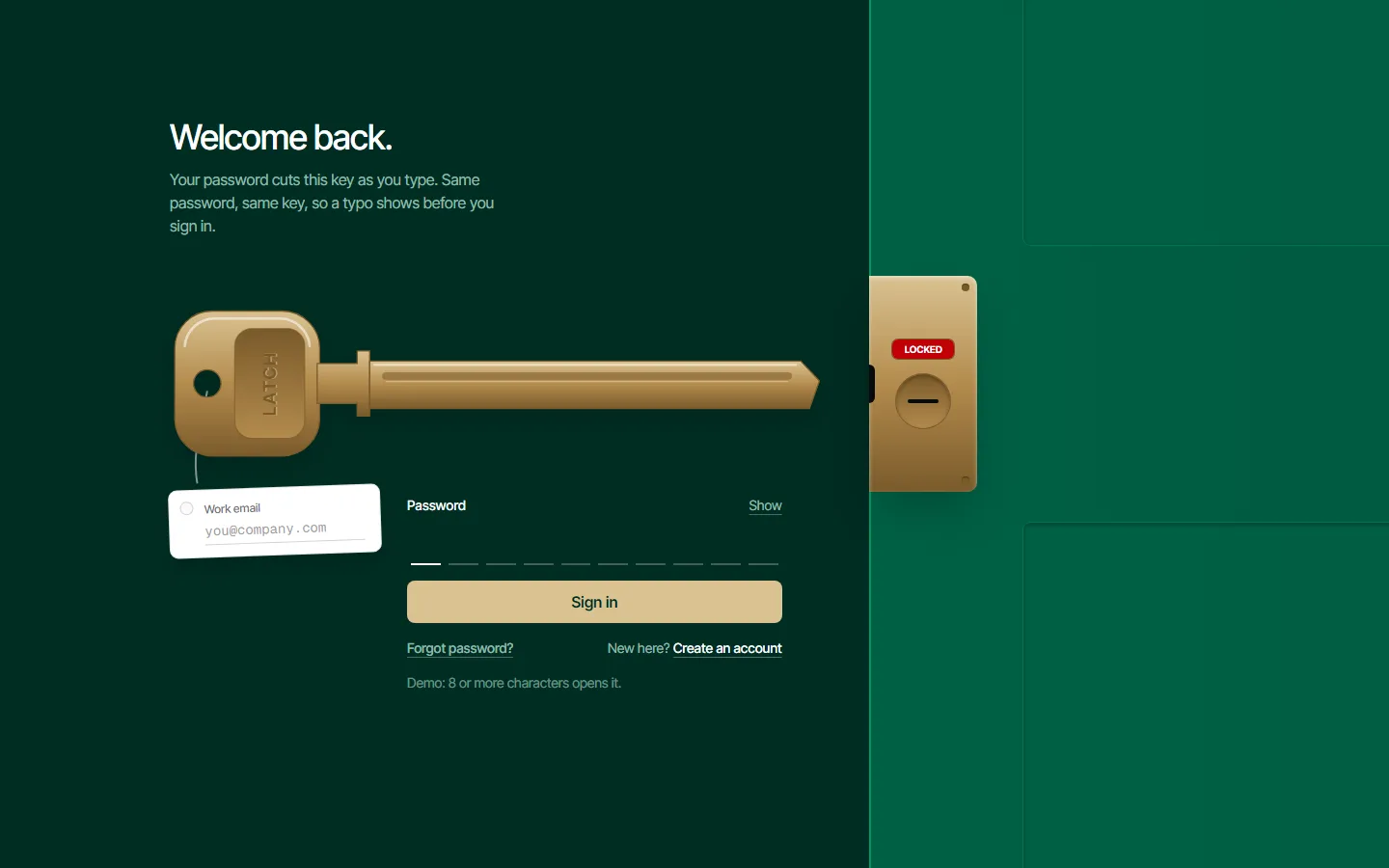
How we built a login page where the password cuts a key
A React login page that turns the password into a brass key as you type: the hash behind the cuts, the SVG that animates them, and the mistakes we made first.
8 min read
A scroll-story landing page in React: one pinned stage, one clock
How to build a pinned scroll story in React with Motion: sticky positioning, one scroll-driven clock, and a single object that changes state scene by scene.
5 min read
OTP input in React: use one real input, not six
Six separate boxes break paste, autofill and screen readers. Build a six-digit code input in React from a single input with the boxes drawn underneath it.